
iCloud Backup Tool — User Guide
A simple, step-by-step visual walkthrough to help you convert, backup, or restore your emails in a few steps.
Prefer a 2-Minute Video Walkthrough?
Watch real desktop execution from file selection to conversion complete.
Before You Begin — Quick Checklist
Key requirements and preparation steps before you start
Direct Cloud Access
Connects directly via secure TLS/SSL. Third-party desktop email clients are not required.
Source Files
The tool reads your source files to convert them. Keep a backup of important data before you start.
Local Processing
Processing runs on your computer and connects to the email provider you sign in to.
Free Evaluation
The free trial is limited to 50 items per folder. A license removes the limit.
Complete 6-Step Execution Guide
Sign In to iCloud Mail
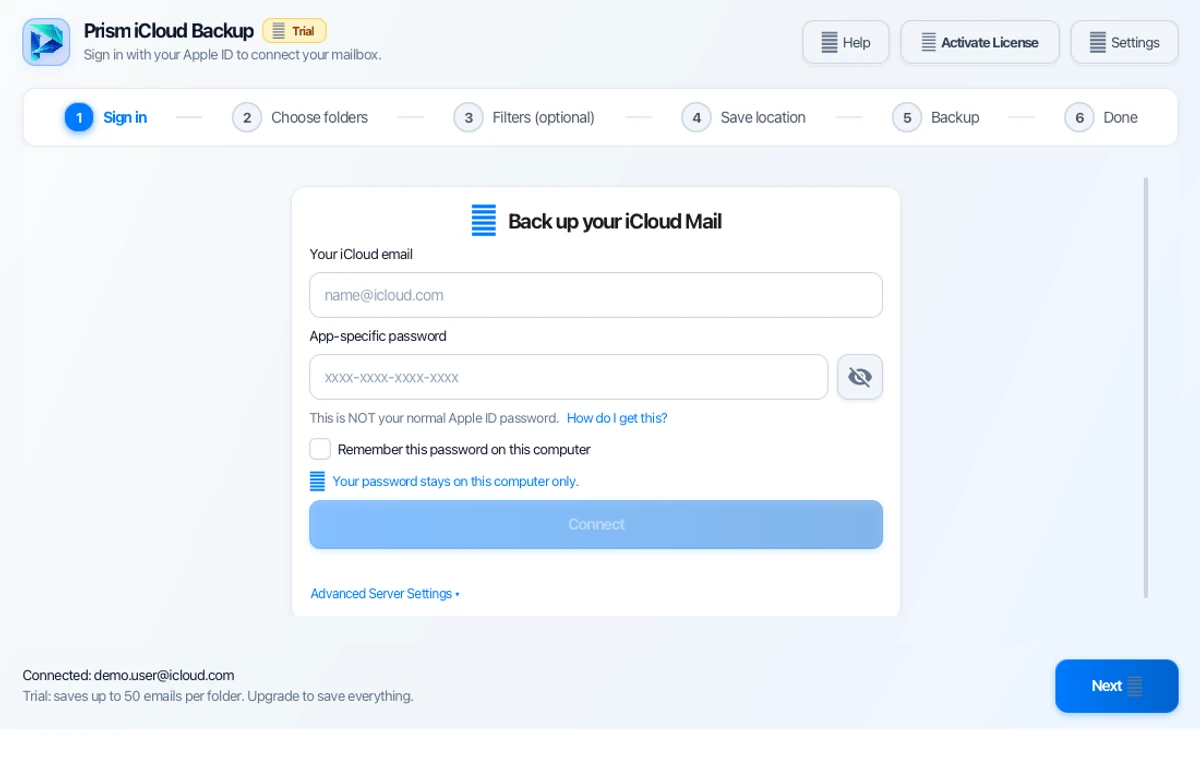
Enter your email address and App Password or click sign in via official browser OAuth. Your sign-in is sent to your mail provider over a secure connection.
Quick Steps
- 1
Enter your email address and password / app password.
- 2
Click Connect Account to securely verify your login.
- 3
The software connects directly to your mail server.
Tip: For Gmail or Yahoo, create an App Password in your account security settings for quick, secure connection.
Select Mailbox Folders
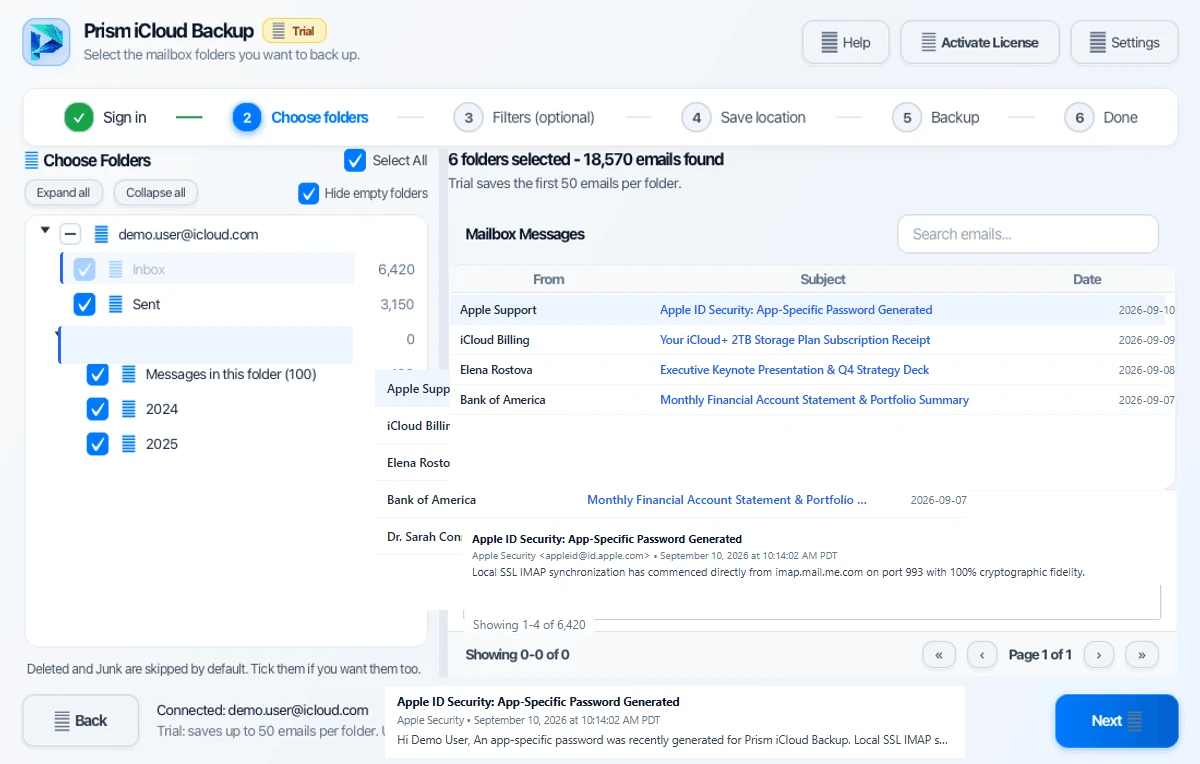
The tool loads your complete online folder tree. Select your Inbox, Sent mail, custom labels, or your entire account with one click.
Quick Steps
- 1
Review all folders and labels loaded from your mail account.
- 2
Check the boxes next to the folders you want to backup.
- 3
Click Next: Configure Filters → to set your preferences.
Tip: You can uncheck Spam or Trash to save disk space and speed up the backup.
Apply Optional Filters
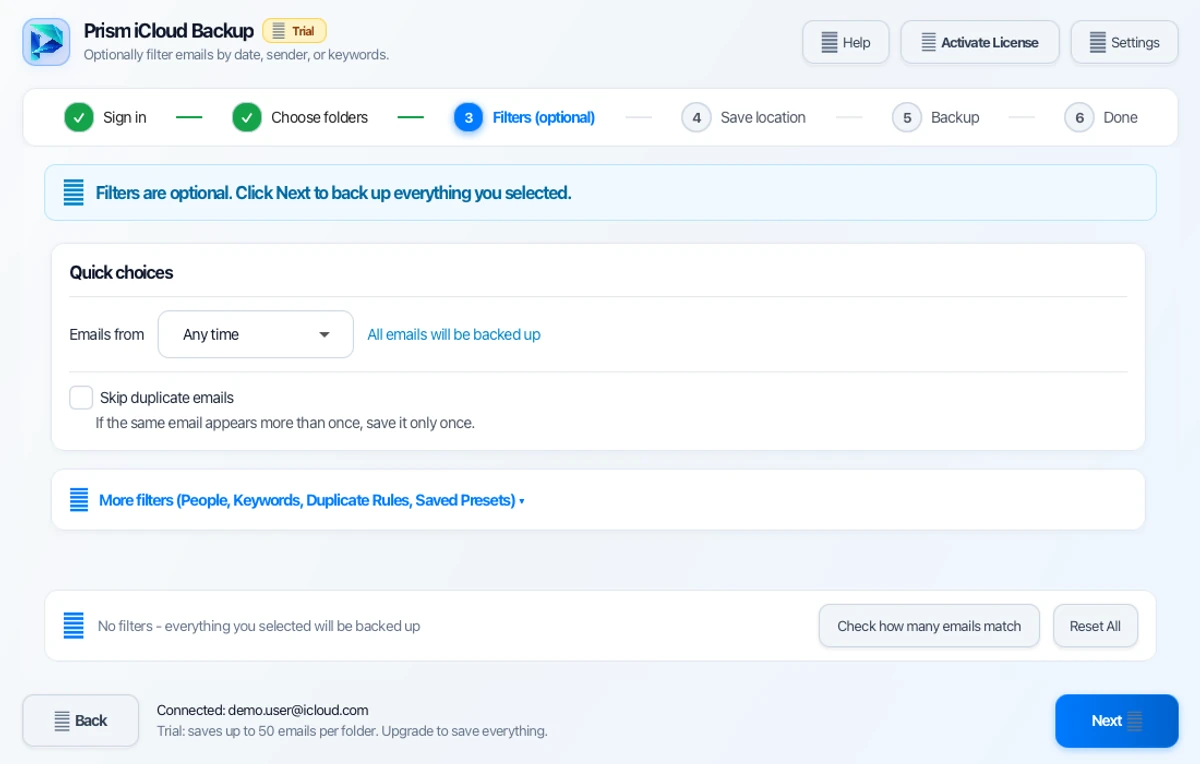
Narrow down your backup to specific emails by date, sender, or subject. You can also skip duplicate emails to keep your archive tidy.
Quick Steps
- 1
Set a Date Range to backup only recent or historical emails.
- 2
Filter by specific senders or subject keywords if needed.
- 3
Click Next: Choose Format → to select your backup format.
Tip: Leave filters empty to include everything in the selected folders.
Choose Backup Format
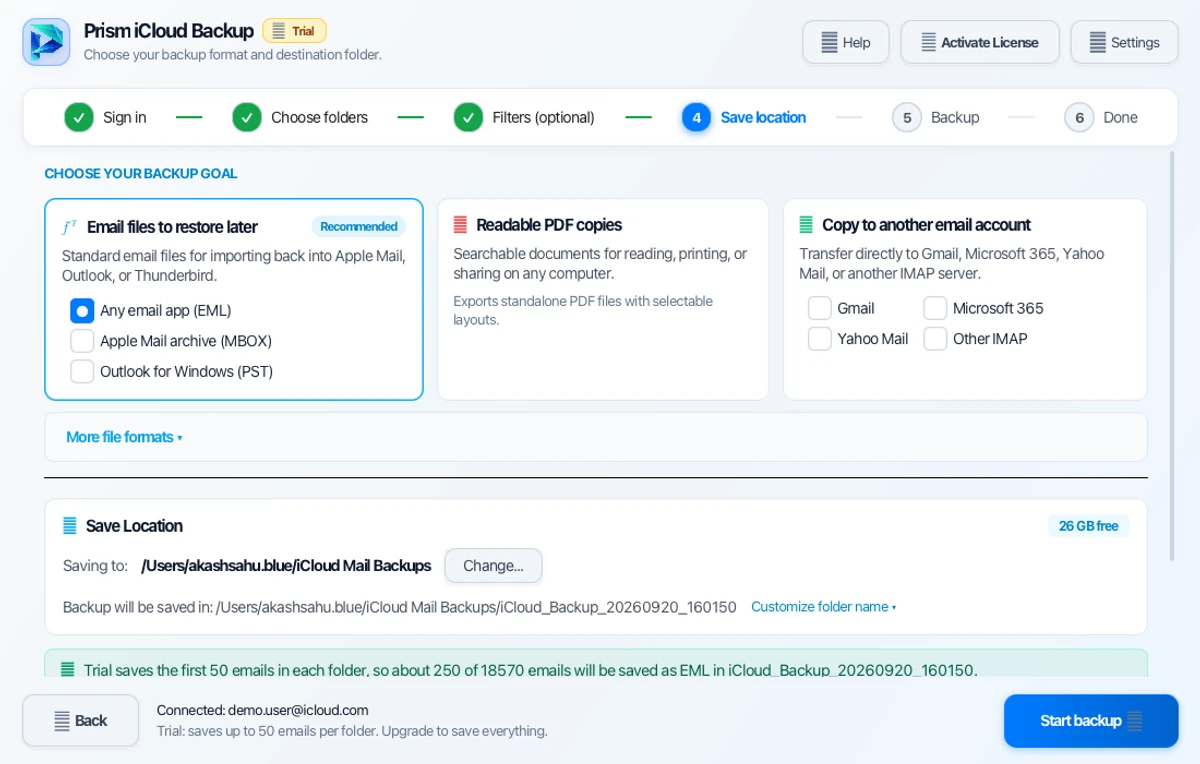
Choose how you want to save your emails. You can export to Outlook PST, universal MBOX, individual EML files, or searchable PDF documents.
Quick Steps
- 1
Select your preferred format (e.g. PST, MBOX, PDF, EML).
- 2
Choose a destination folder on your computer to save your backup.
- 3
Optionally enable automatic file splitting for large mailboxes.
Tip: PST is ideal for Outlook, MBOX for Thunderbird/Mac, and PDF for legal archiving.
Download & Backup Mailbox
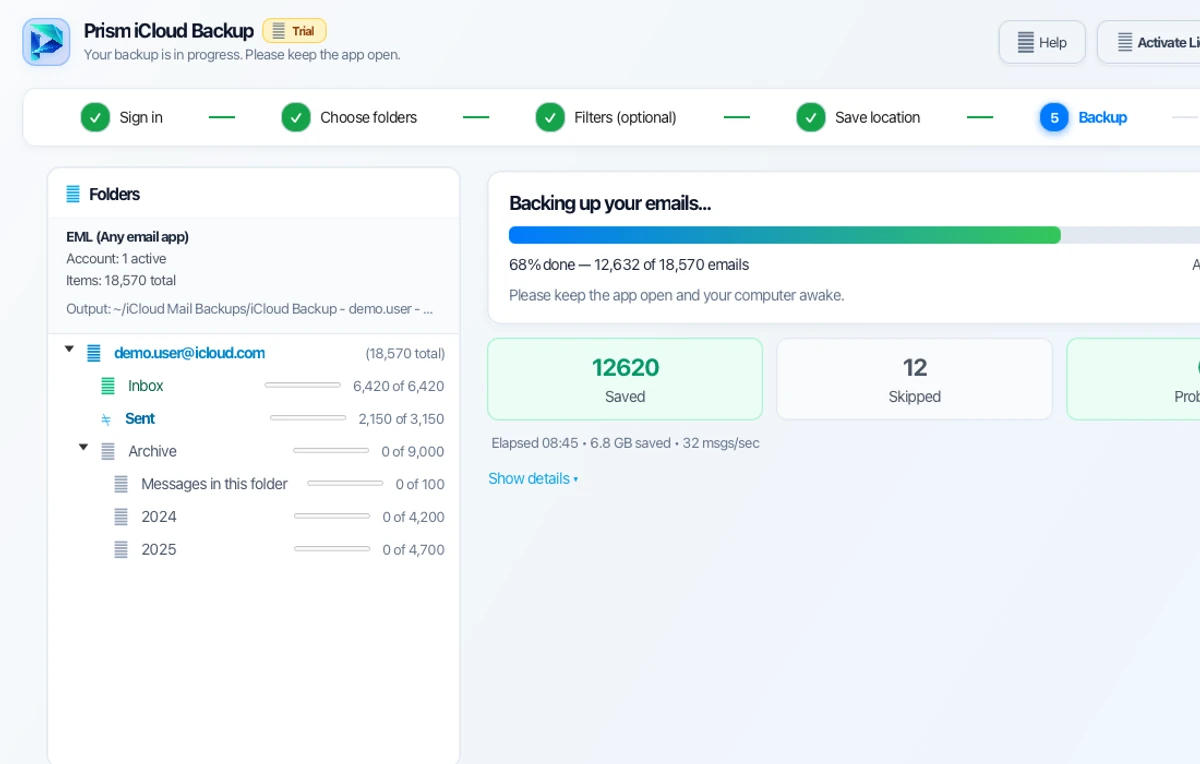
Click Start Backup to begin downloading your emails. The tool downloads messages with live speed tracking and progress bars.
Quick Steps
- 1
Click Start Backup to begin downloading emails.
- 2
Monitor items downloaded, current folder, and transfer speed in real time.
- 3
You can pause and resume whenever needed.
Tip: The built-in checkpoint engine lets you resume an interrupted download without re-downloading existing emails.
Backup Complete
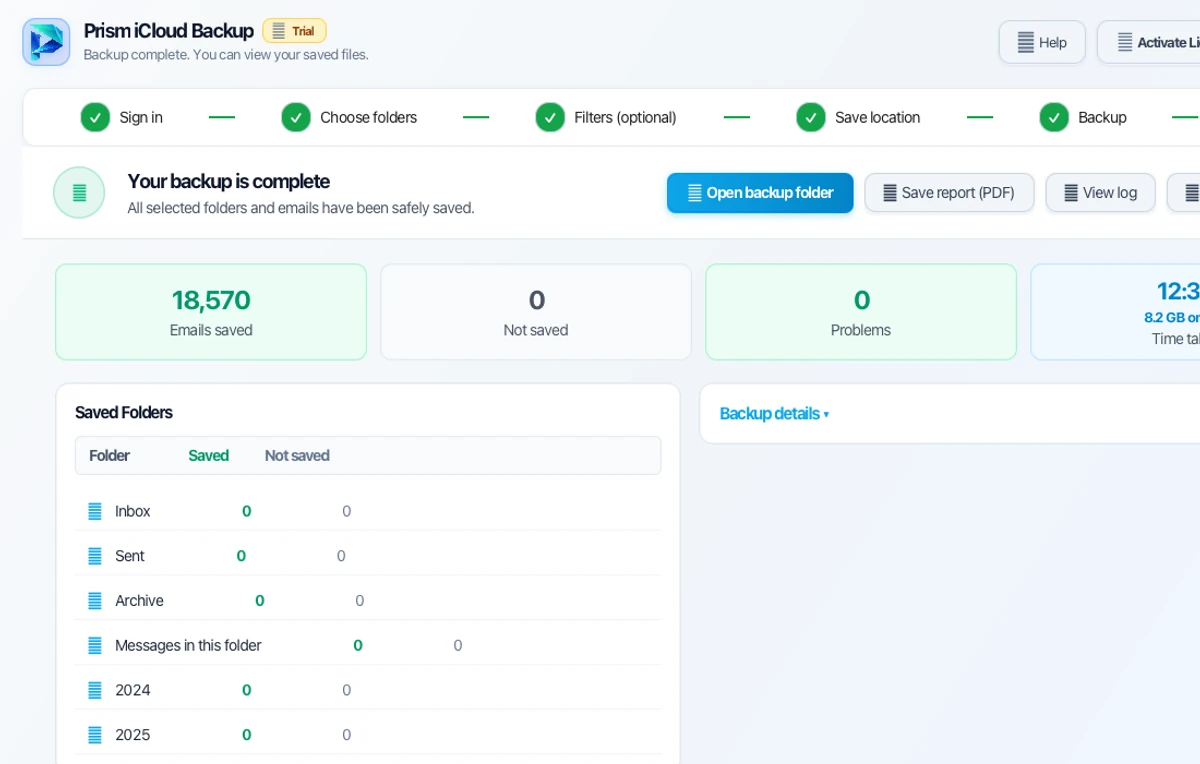
When complete, your emails are safely stored on your local drive. Click Open Folder to view and open your offline mailbox archive.
Quick Steps
- 1
Review the download summary showing total backed-up items.
- 2
Click Open Folder to access your backup files on your computer.
- 3
Keep your archive safe on local drives, external disks, or NAS storage.
Tip: Your emails are now completely offline and protected from account lockouts or accidental deletion.
Common Tasks
Create an Apple App-Specific Password
Before you start
An Apple ID with two-factor authentication turned on
Sign in at
appleid.apple.com.Generate an App-Specific Password (16 characters).
Copy it.
In Prism iCloud Backup, enter your iCloud email address and this App-Specific Password instead of your normal Apple ID password.
Apple requires an App-Specific Password for third-party mail apps that connect over IMAP (imap.mail.me.com:993).
Questions About Conversion or Setup?
Find detailed troubleshooting, format limits, and licensing answers in our dedicated FAQ section.
Step Navigation
6 StagesSystem Requirements
Supported Formats
Ready to Migrate?
Official license key. Choose 1, 2, or 3-year validity with no recurring subscription.
Get License Plan Or Download Free Trial →The free trial is limited to 50 items per folder. A license removes the limit.
