
JSON Converter Tool — User Guide
A step-by-step walkthrough to help you validate JSON records, select fields, and convert structured data to CSV, Excel, or PDF.
Prefer a 2-Minute Video Walkthrough?
Watch real desktop execution from file selection to conversion complete.
Before You Begin — Quick Checklist
Key requirements and preparation steps before you start
Local File Selection
Load JSON or JSONL files directly from your computer. No external database or network connection is required.
Source Files
The tool reads your source files to convert them. Keep a backup of important data before you start.
Local Processing
All parsing, schema validation, and file conversion run entirely on your local machine.
Free Evaluation
Free evaluation: convert up to 50 records per file. A license removes the limit.
Complete 6-Step Execution Guide
Add JSON Files or Folder
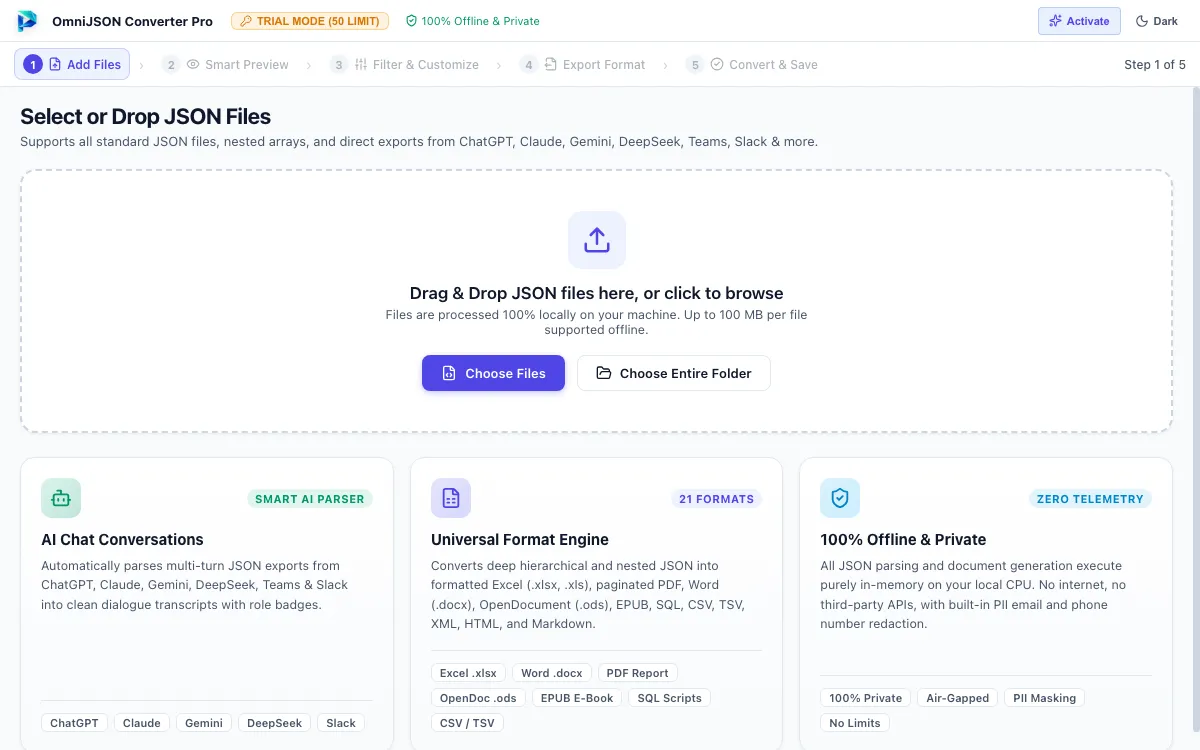
Click + Add File(s) to pick individual JSON files, or click Add Folder to load an entire directory at once. You can also drag and drop files directly onto the window. Supports standard JSON arrays/objects and streaming line-delimited JSONL files up to 100MB each.
Quick Steps
- 1
Click + Add File(s) or Add Folder to select your JSON or JSONL datasets.
- 2
Review loaded files with file sizes, record estimates, and schema status.
- 3
Click Next: Preview Data → to proceed.
Tip: Supports standard JSON arrays/objects and streaming line-delimited JSONL files up to 100MB each.
Preview Structure & Data Table
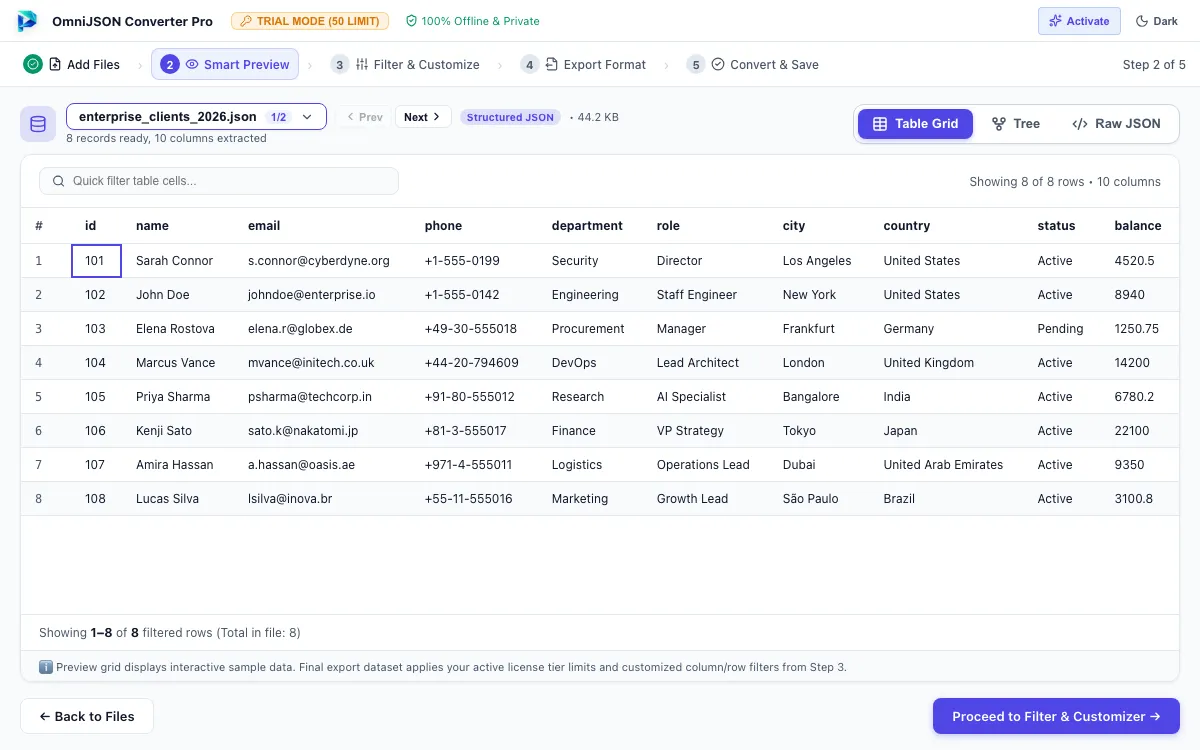
Explore your JSON structure using the Tree View to examine nested objects or the Table View to inspect flattened rows and columns. Navigate records with full keyboard roving tabindex support.
Quick Steps
- 1
Inspect hierarchical keys and values in the collapsible Tree View.
- 2
Navigate grid rows and columns using arrow keys in Table View.
- 3
Press Enter on any cell to open the accessible Cell Inspection dialog.
Tip: Use the Search bar in preview to quickly filter specific keys or record values.
Filter Fields & Toggle PII Masking
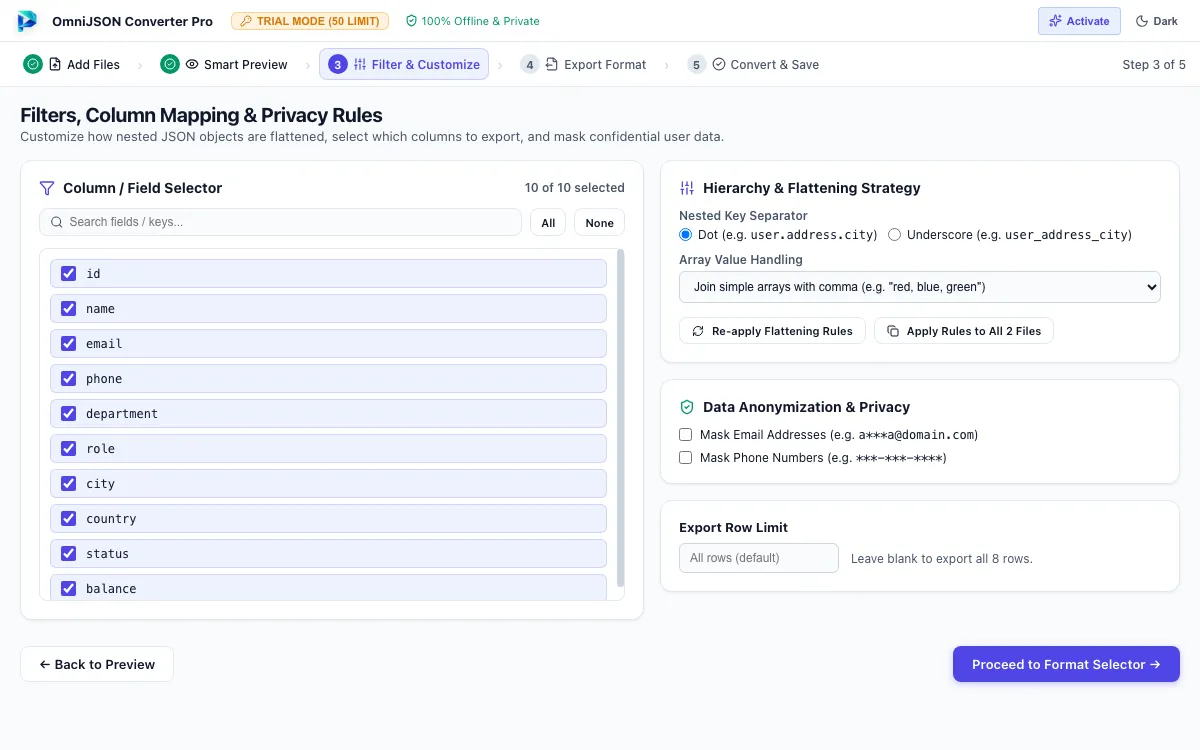
Choose which columns to include in your export, configure row limits, search by keyword, and enable recursive PII masking for emails and phone numbers to keep exports compliant.
Quick Steps
- 1
Check or uncheck individual column checkboxes or click Select All / Deselect All.
- 2
Enable Anonymize Emails and Phone Numbers to recursively mask sensitive data.
- 3
Apply custom settings to all active files with one click.
Tip: Masked emails retain domain names (e.g. s***r@cyberdyne.org) for schema verification.
Select Target Export Format
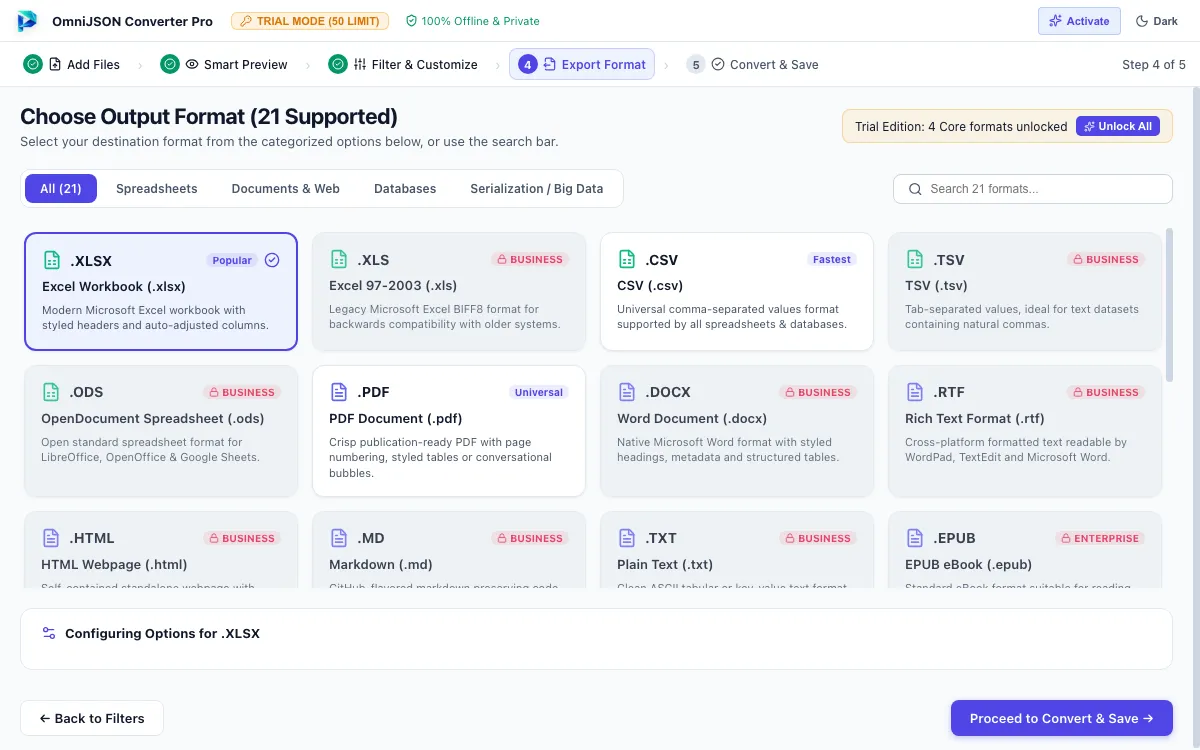
Browse formats organized by category: Spreadsheets (Excel XLSX, CSV, TSV, ODS), Relational SQL (SQLite, PostgreSQL, MySQL), Documents (PDF, Word DOCX, Markdown), or Structured Configs (XML, YAML, TOML).
Quick Steps
- 1
Click your desired target format card (e.g. Excel XLSX, CSV, SQL, PDF, DOCX).
- 2
Configure format-specific options such as SQL dialect or PDF page layout.
- 3
Click Next: Export & Download → to proceed.
Tip: All 21 formats are native generators and produce genuine, compliant files directly off disk.
Execute Conversion Job
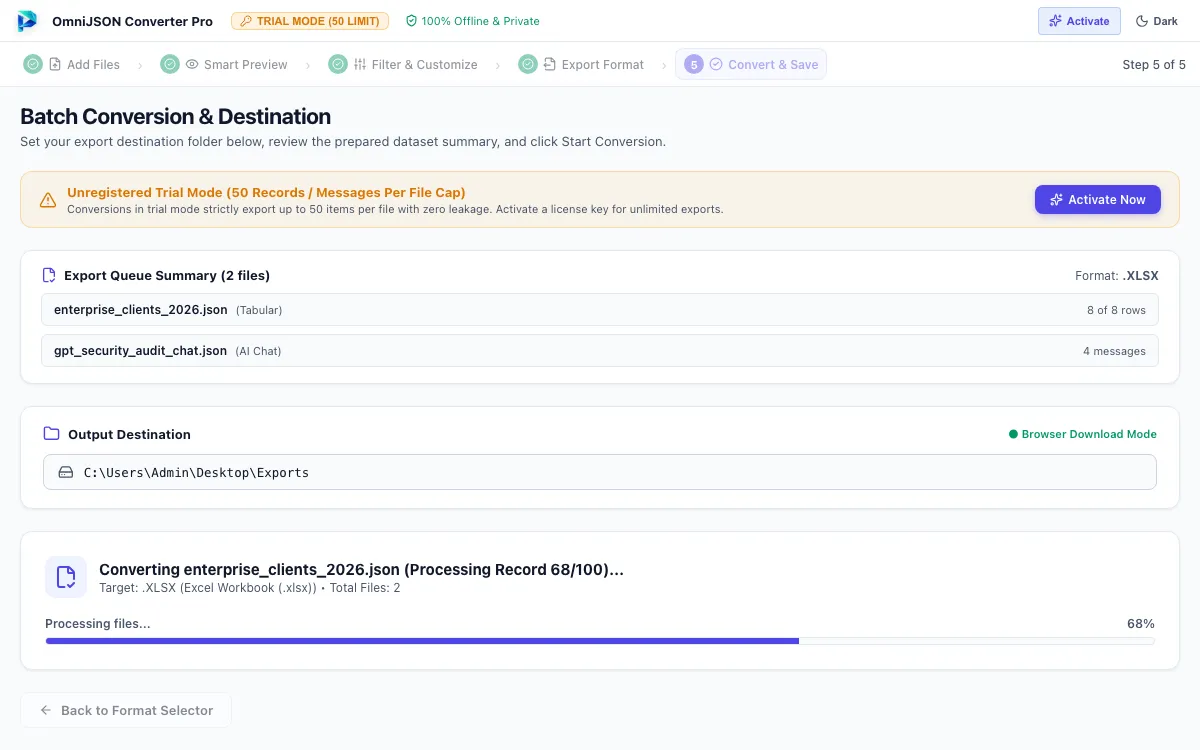
Watch real-time batch conversion progress as each file is parsed, filtered, and atomically written to your selected destination folder with streaming memory management.
Quick Steps
- 1
Select your preferred destination folder on your local drive.
- 2
Click Start Conversion to begin the multi-file export.
- 3
Monitor the live progress bar and status counters.
Tip: Files are written to hidden atomic temporary files before final rename to prevent corrupted outputs.
Review Completion Report
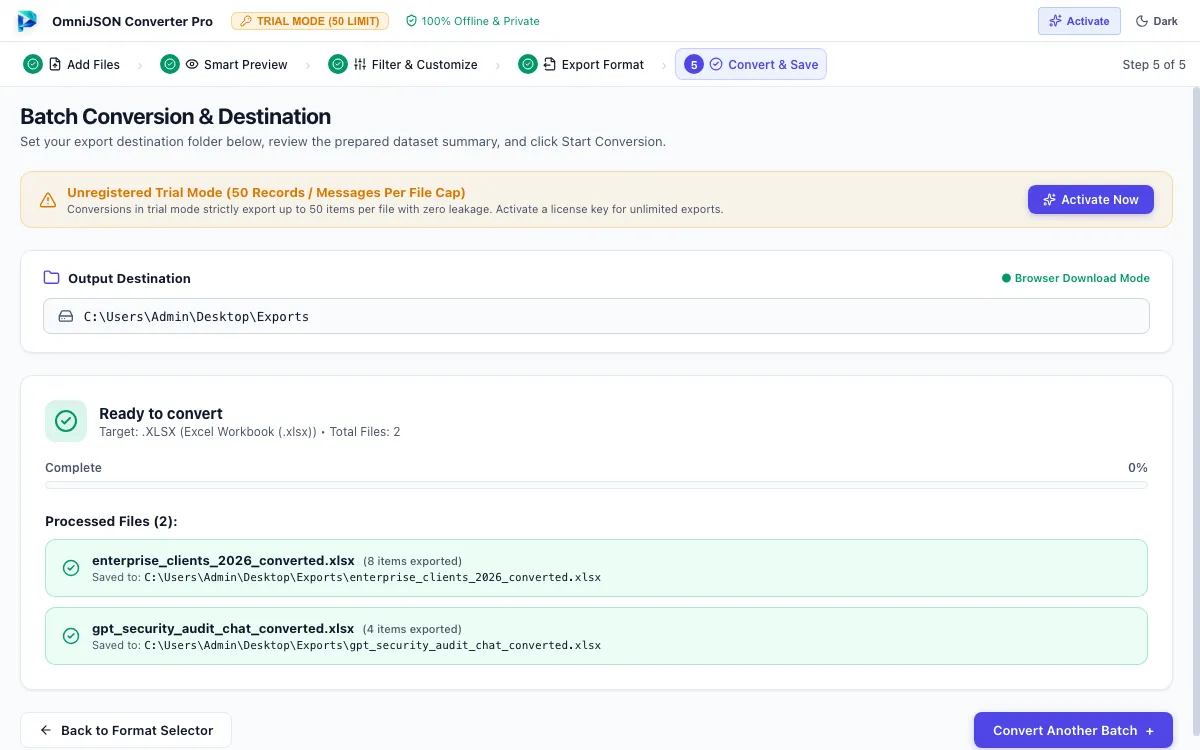
Review the summary report displaying output filenames, record counts, file sizes, and destination paths. Click Convert Another Batch to reset the workspace and process another dataset.
Quick Steps
- 1
Verify all files show completed saved status in the export summary table.
- 2
Confirm record counts and destination file paths.
- 3
Click Convert Another Batch to reset and process another dataset.
Tip: Converted files are saved directly in your selected output directory and can be opened in Microsoft Excel, database clients, or text editors.
Questions About Conversion or Setup?
Find detailed troubleshooting, format limits, and licensing answers in our dedicated FAQ section.
Step Navigation
6 StagesSystem Requirements
Supported Formats
Ready to Migrate?
Official license key. Choose 1, 2, or 3-year validity with no recurring subscription.
Get License Plan Or Download Free Trial →Free evaluation: convert up to 50 records per file. A license removes the limit.
