
Maildir Converter Tool (2026 Enterprise Edition) — User Guide
A simple, step-by-step visual walkthrough to help you convert, backup, or restore your emails in a few steps.
Prefer a 2-Minute Video Walkthrough?
Watch real desktop execution from file selection to conversion complete.
Before You Begin — Quick Checklist
Key requirements and preparation steps before you start
Standalone Operation
Runs independently. Microsoft Outlook, Exchange, or third-party email clients are not required.
Source Files
The tool reads your source files to convert them. Keep a backup of important data before you start.
Local Processing
Conversion runs on your computer. Only cloud destinations you choose send data to those services.
Free Evaluation
The free trial is limited to 50 items per folder. A license removes the limit.
Complete 6-Step Execution Guide
Add Maildir Files or Folder
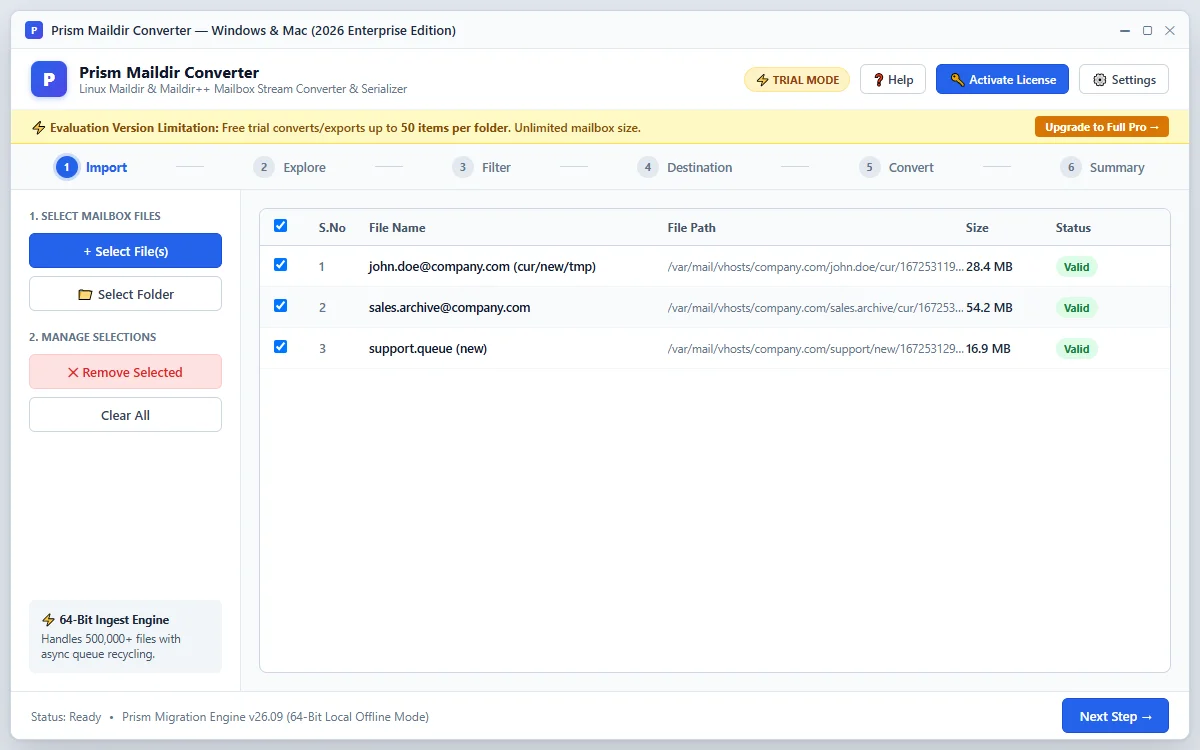
Click + Add File(s) to pick individual files, or click Add Folder to load an entire directory at once. You can also drag and drop files directly into the window.
Quick Steps
- 1
Click + Add File(s) or Add Folder to select your Maildir data.
- 2
Review the loaded files list with file sizes and status.
- 3
Click Next: Preview Mailbox → to proceed.
Tip: You can convert multiple files at once in batch mode.
Preview Folders & Emails
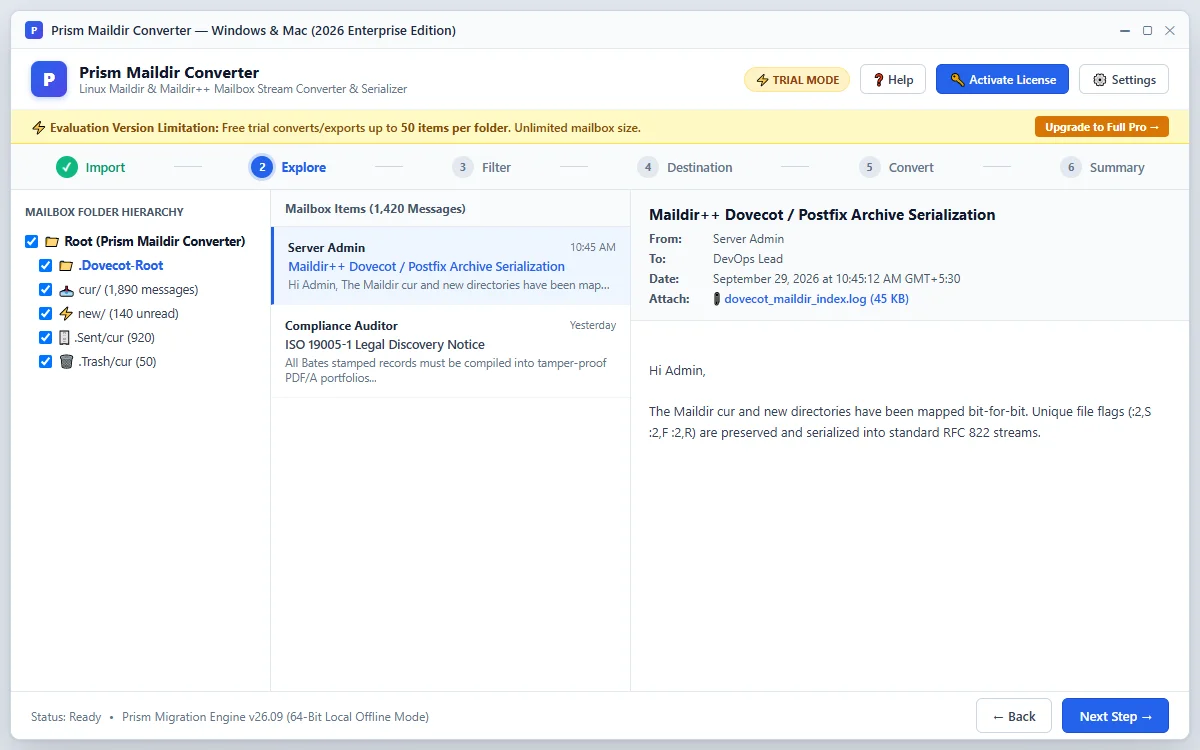
Explore your complete folder tree on the left. Click any folder to see its message list, and click any email to preview its text, formatting, and attachments.
Quick Steps
- 1
Browse folders (Inbox, Sent, Contacts, Calendars) in the left panel.
- 2
Click any email to inspect message details and view attachments.
- 3
Check the boxes next to the folders you want to convert.
Tip: Use the search bar at the top to quickly find specific emails by keyword.
Apply Optional Filters
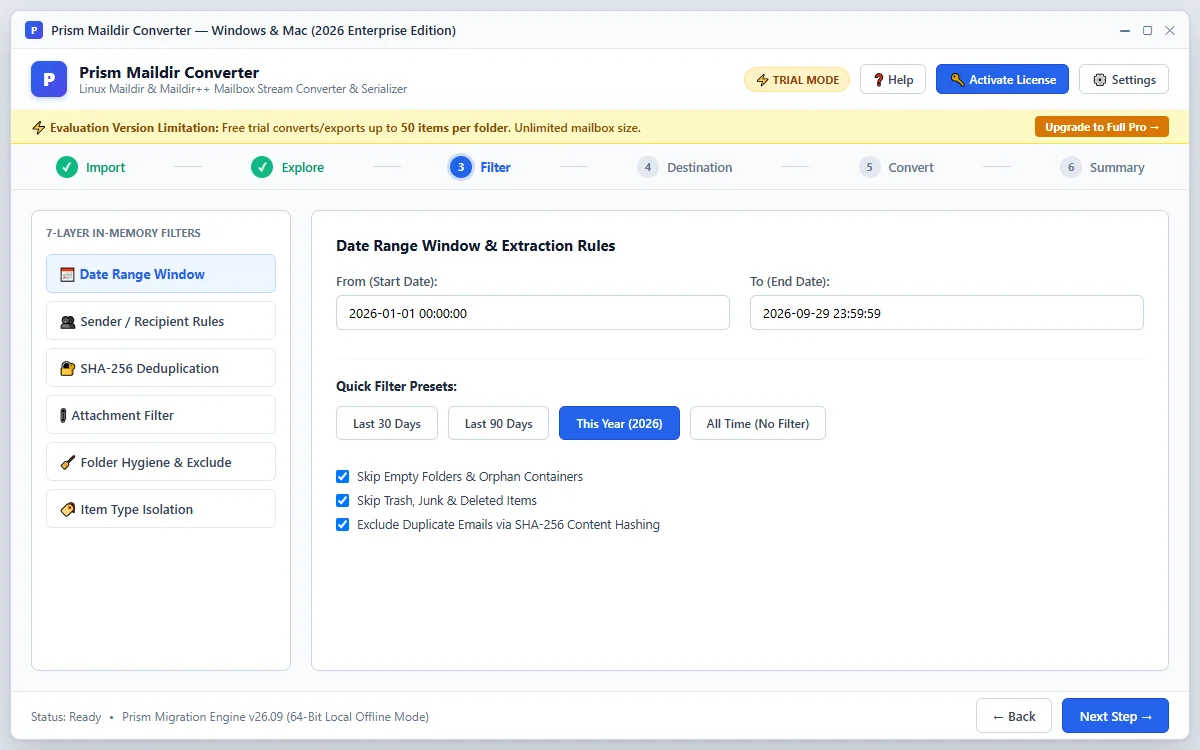
Set optional filters to convert only what you need. You can filter by date range, specific email addresses, or exclude deleted items and spam.
Quick Steps
- 1
Select a Date Range to convert emails from a specific timeframe.
- 2
Exclude Deleted Items or Junk folders to keep your output clean.
- 3
Enable Skip Duplicates to prevent redundant messages.
Tip: Filters are optional — click Next without changing anything to convert everything.
Choose Output Format
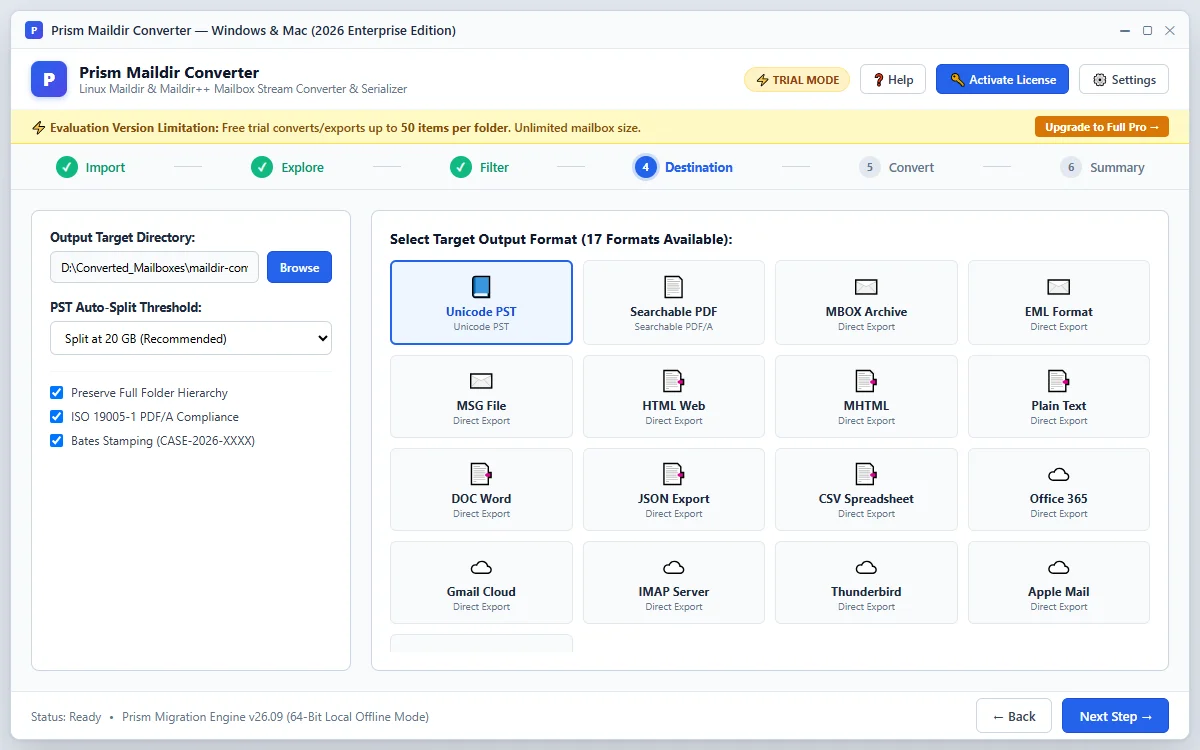
Choose from 17 supported export formats. Examples: Outlook PST, PDF, MBOX or EML.
Quick Steps
- 1
Select your target format (such as PST, PDF, MBOX, EML, or Cloud).
- 2
Choose a save location on your computer for the exported files.
- 3
Optionally split large output files into manageable sizes (e.g. 5GB or 10GB).
Tip: When exporting to PDF, attachments are automatically embedded inside each document.
Start Conversion
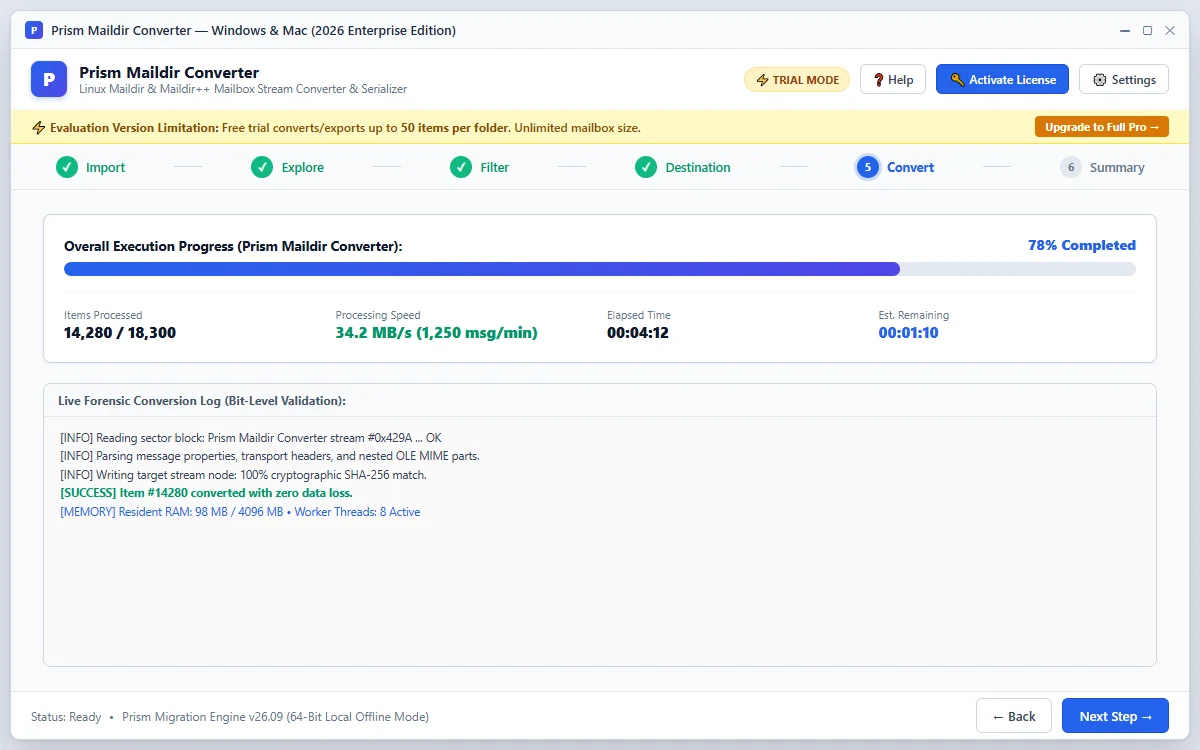
Click Start Conversion to begin. A live progress bar shows current file progress, total items converted, and estimated time remaining.
Quick Steps
- 1
Click the Start Conversion button to begin processing.
- 2
Watch the real-time progress bar and item count.
- 3
You can pause and resume the process at any time.
Tip: Conversion runs on your computer. Choosing a cloud destination sends the converted items to that service.
Conversion Complete
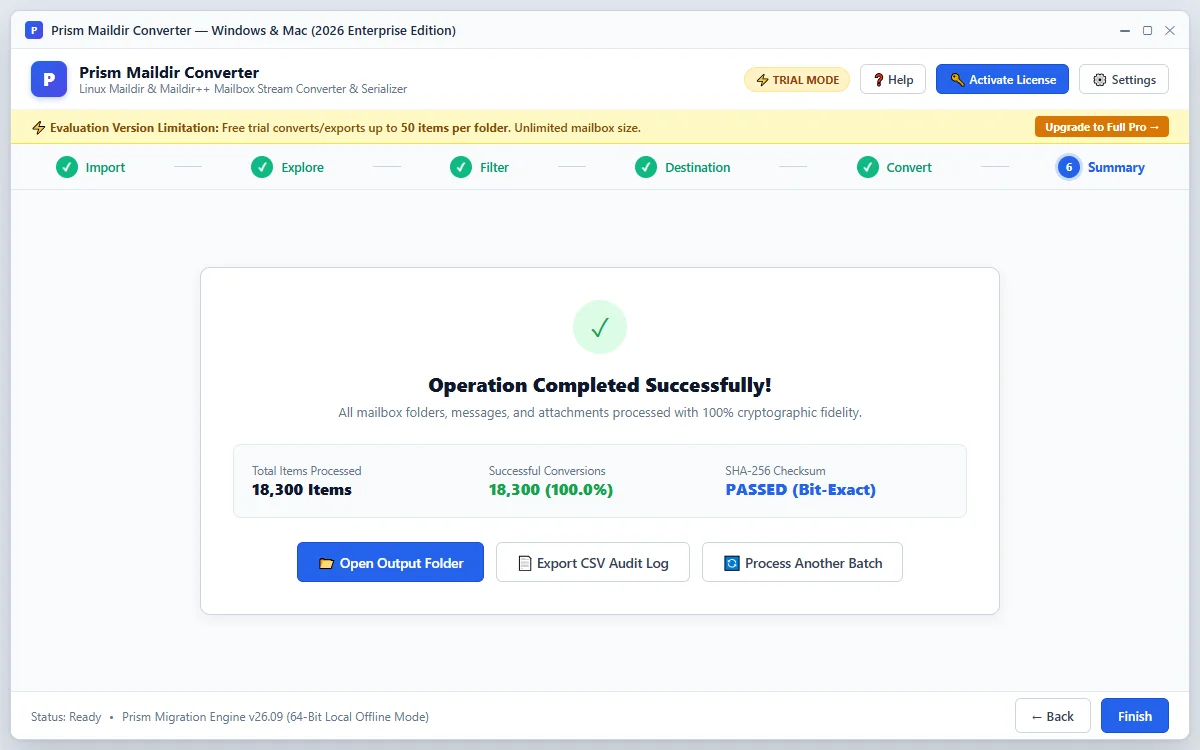
Once finished, a completion screen shows the result. Check the completed, skipped and failed counts, then click Open Folder to open your new files.
Quick Steps
- 1
Check the summary confirming total converted items.
- 2
Click Open Folder to view your converted files in File Explorer or Finder.
- 3
Import your files into your email client or keep them as safe archives.
Tip: The converter reads your source files; it does not modify them.
Questions About Conversion or Setup?
Find detailed troubleshooting, format limits, and licensing answers in our dedicated FAQ section.
Step Navigation
6 StagesSystem Requirements
Supported Formats
Ready to Migrate?
Official license key. Choose 1, 2, or 3-year validity with no recurring subscription.
Get License Plan Or Download Free Trial →The free trial is limited to 50 items per folder. A license removes the limit.
