
OneDrive Duplicate Remover — User Guide
A step-by-step walkthrough to help you select your local or synced OneDrive folder, scan for duplicate files, preview matches, and clean up storage.
Prefer a 2-Minute Video Walkthrough?
Watch real desktop execution from file selection to conversion complete.
Before You Begin — Quick Checklist
Key requirements and preparation steps before you start
Folder Selection
Choose local folders, external drives, or your local OneDrive sync directory without requiring complex configuration.
Review Before Cleanup
The scan lists duplicates for side-by-side review. Files inside a OneDrive sync folder sync to the cloud, so moving or deleting them affects your OneDrive account and other synced devices. Check restore options in the app before confirming.
Local Processing
File scanning and hash comparison run directly on your computer. Review the selected folders and duplicate matches before choosing a cleanup action.
Free Evaluation
Free trial: scan and preview duplicates. Cleanup requires a paid license.
Complete 6-Step Execution Guide
Select Folders to Scan
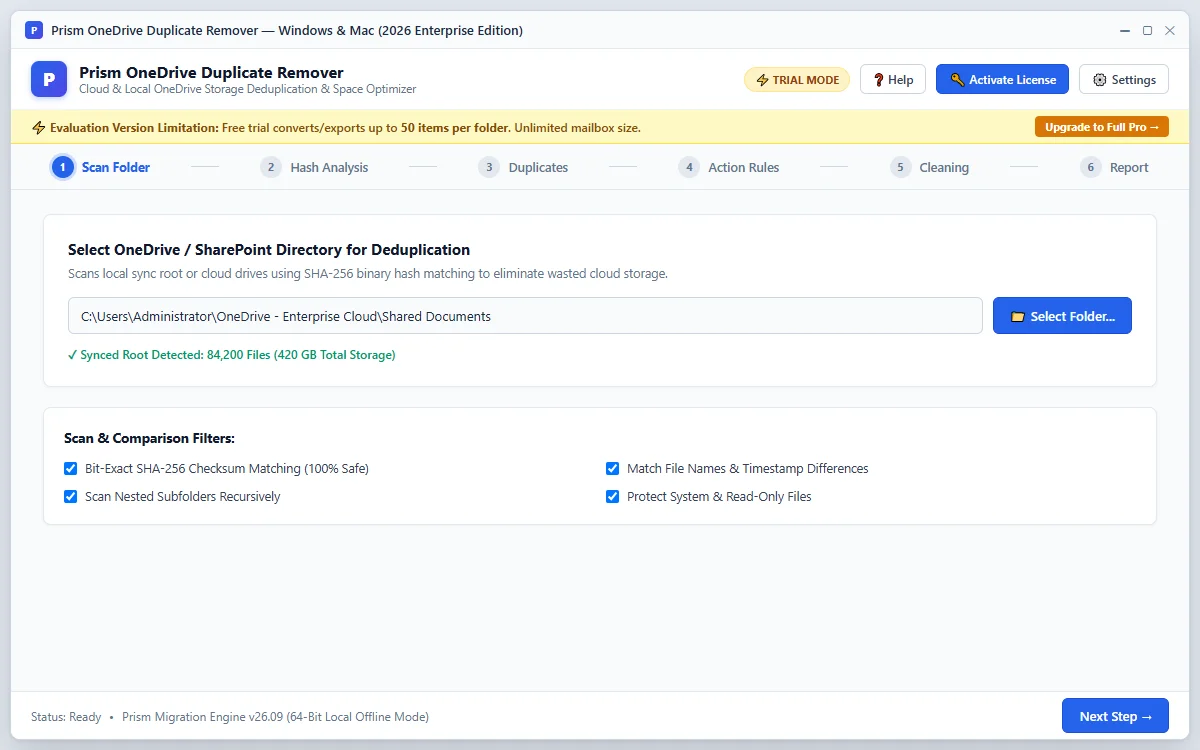
Click Select Folder to pick your Microsoft OneDrive sync folder, local drive, or external disk for duplicate scanning.
Quick Steps
- 1
Click Select Folder and choose the directory you want to clean.
- 2
The software checks your folder structure and prepares for scanning.
- 3
Click Next: Choose Categories → to set your file preferences.
Tip: You can select your entire OneDrive folder or specific subfolders.
Choose File Categories
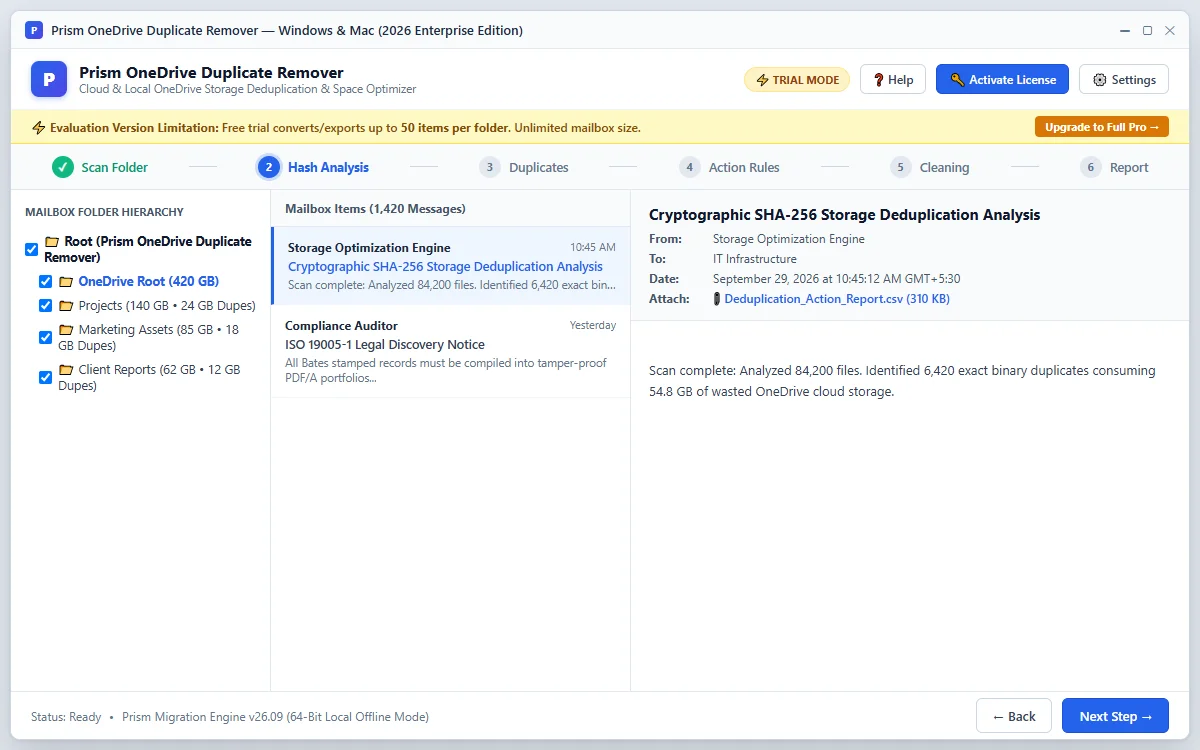
Select which file categories to search for duplicates: Photos (JPEG, PNG, RAW), Documents (PDF, Word, Excel), Videos, or all files.
Quick Steps
- 1
Check the file types you want to check for duplicates.
- 2
Set optional file size limits (e.g. skip files smaller than 1 MB).
- 3
Click Next: Start Scanning → to begin.
Tip: Scanning photos and large videos first is the fastest way to free up cloud storage.
Scan for Duplicates
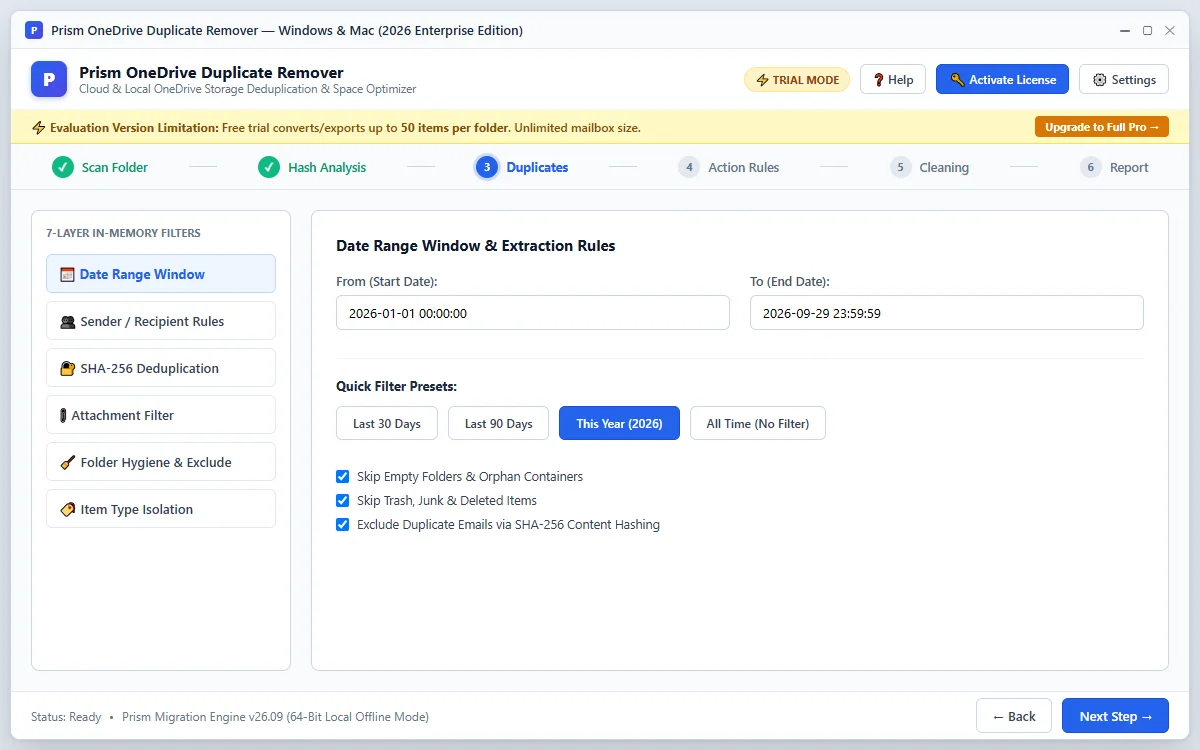
The scanner compares file contents to find identical files, even if the names or dates differ.
Quick Steps
- 1
Watch the real-time file scanner and duplicate match counter.
- 2
Identical files are automatically grouped together.
- 3
Click Next: Preview Results → to inspect the matches.
Tip: Files with different names but identical contents are grouped as duplicates.
Preview Duplicates Side-by-Side
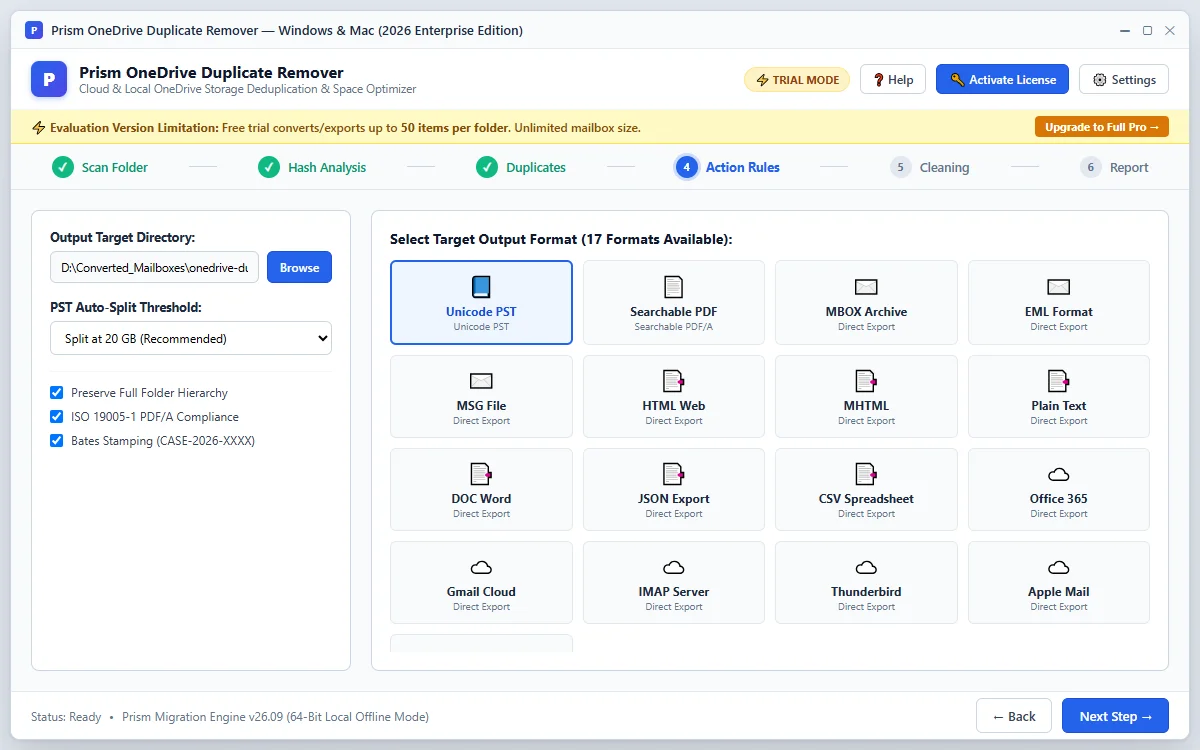
Inspect duplicate groups side-by-side. View file paths, modified dates, sizes, and visual photo previews before taking any action.
Quick Steps
- 1
Browse duplicate groups in the interactive preview list.
- 2
Click photos to view side-by-side visual comparisons.
- 3
Verify file paths and modification dates before selection.
Tip: Review the list before you choose any cleanup action.
Apply Smart Auto-Selection
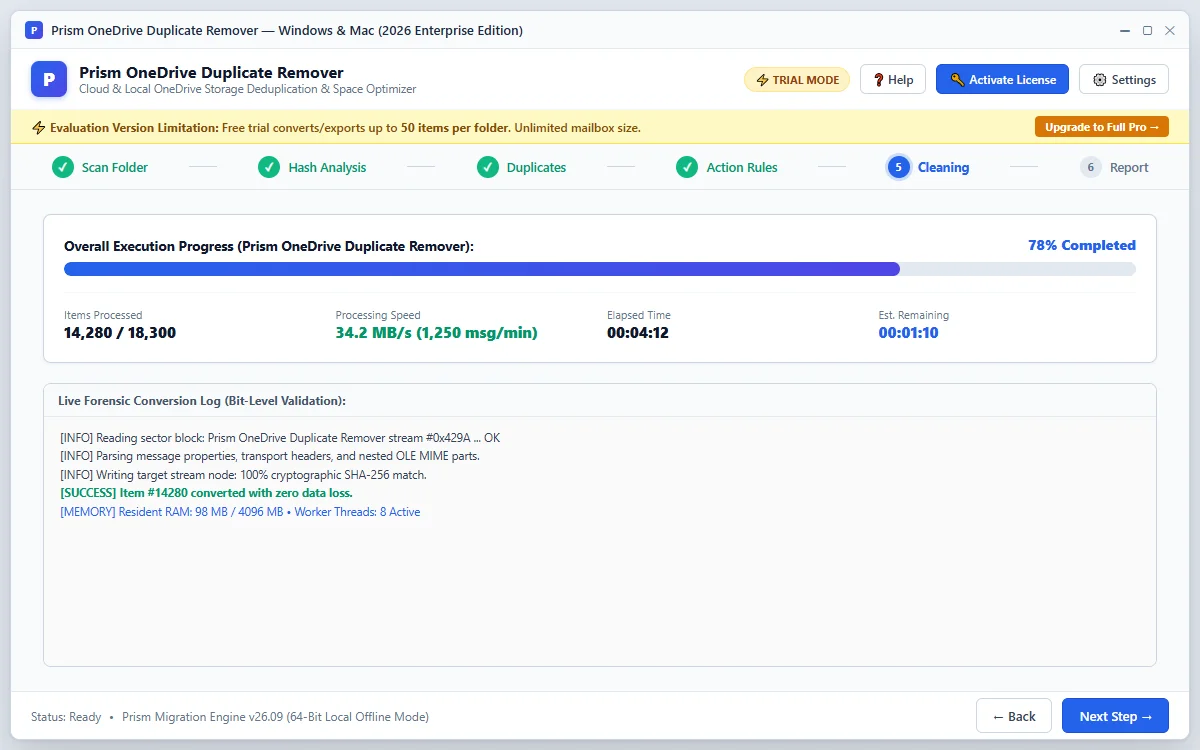
Use smart auto-selection rules to mark duplicate copies — such as keeping the newest copy, keeping the original, or preserving specific folders.
Quick Steps
- 1
Choose an auto-select rule: Keep Oldest, Keep Newest, or folder priority.
- 2
The software marks the redundant copies based on your rule.
- 3
Review marked files before proceeding to clean.
Tip: Check that the copy you want to keep is not marked before you continue.
Clean Storage & Reclaim Space
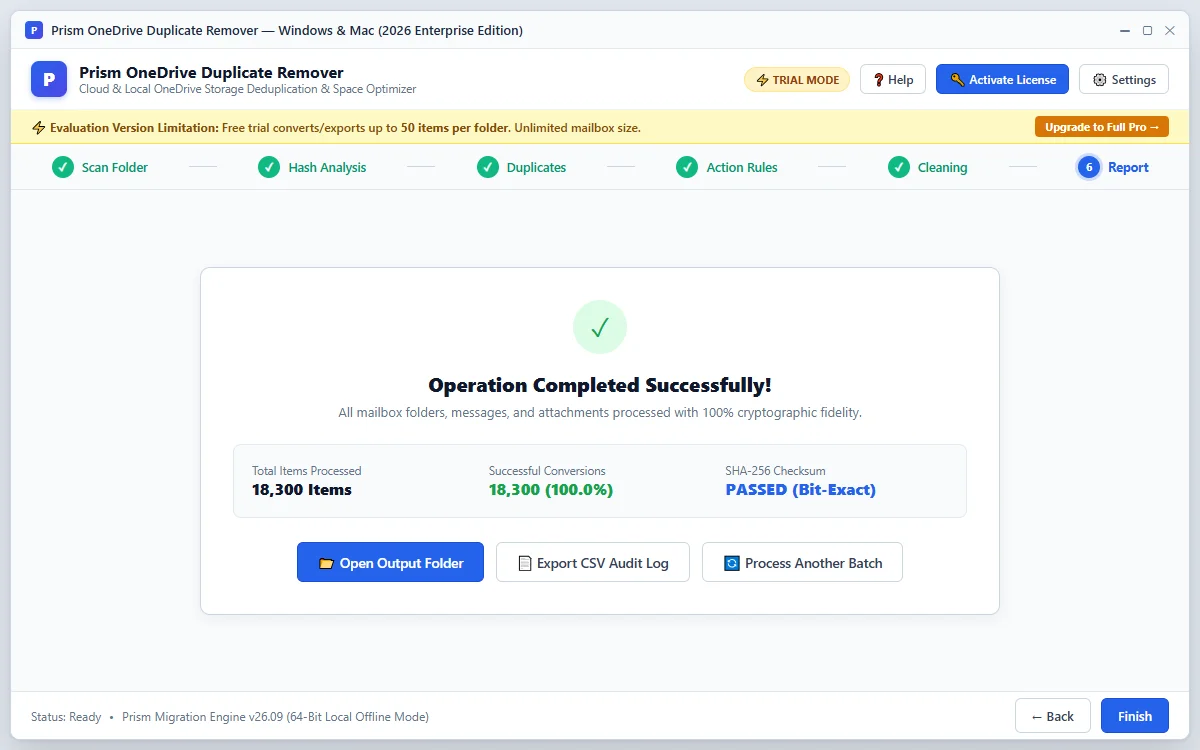
Choose where marked duplicates go: the Quarantine Vault or the Recycle Bin / Trash. Files inside a OneDrive sync folder are synced, so moving or deleting them can also change your OneDrive account and other devices. Check the restore options shown in the app before you confirm.
Quick Steps
- 1
Select your cleanup preference: Quarantine Vault or Trash / Recycle Bin.
- 2
Click Clean Duplicates only after you have checked the destination and the marked files.
- 3
View the completion report.
Tip: Confirm in the app how restore works for your chosen destination before cleaning.
Questions About Cleanup or Setup?
Find troubleshooting steps, scanning guidance, and licensing answers in our dedicated FAQ section.
Step Navigation
6 StagesSystem Requirements
Ready to Clean Up?
Official license key. Choose 1, 2, or 3-year validity with no recurring subscription.
Get License Plan Or Download Free Trial →Free trial: scan and preview duplicates. Cleanup requires a paid license.
