
Outlook Duplicate Remover — User Guide
A step-by-step walkthrough to help you scan Outlook data files, preview duplicate emails and contacts, and remove duplicates safely.
Prefer a 2-Minute Video Walkthrough?
Watch real desktop execution from file selection to conversion complete.
Before You Begin — Quick Checklist
Key requirements and preparation steps before you start
Folder Selection
Choose local folders, external drives, or your local OneDrive sync directory without requiring complex configuration.
Review Before Cleanup
The scan lists duplicates for side-by-side review. Files inside a OneDrive sync folder sync to the cloud, so moving or deleting them affects your OneDrive account and other synced devices. Check restore options in the app before confirming.
Local Processing
File scanning and hash comparison run directly on your computer. Review the selected folders and duplicate matches before choosing a cleanup action.
Free Evaluation
Free trial: scan and preview duplicates. Cleanup requires a paid license.
Complete 6-Step Execution Guide
Select Outlook Data Files
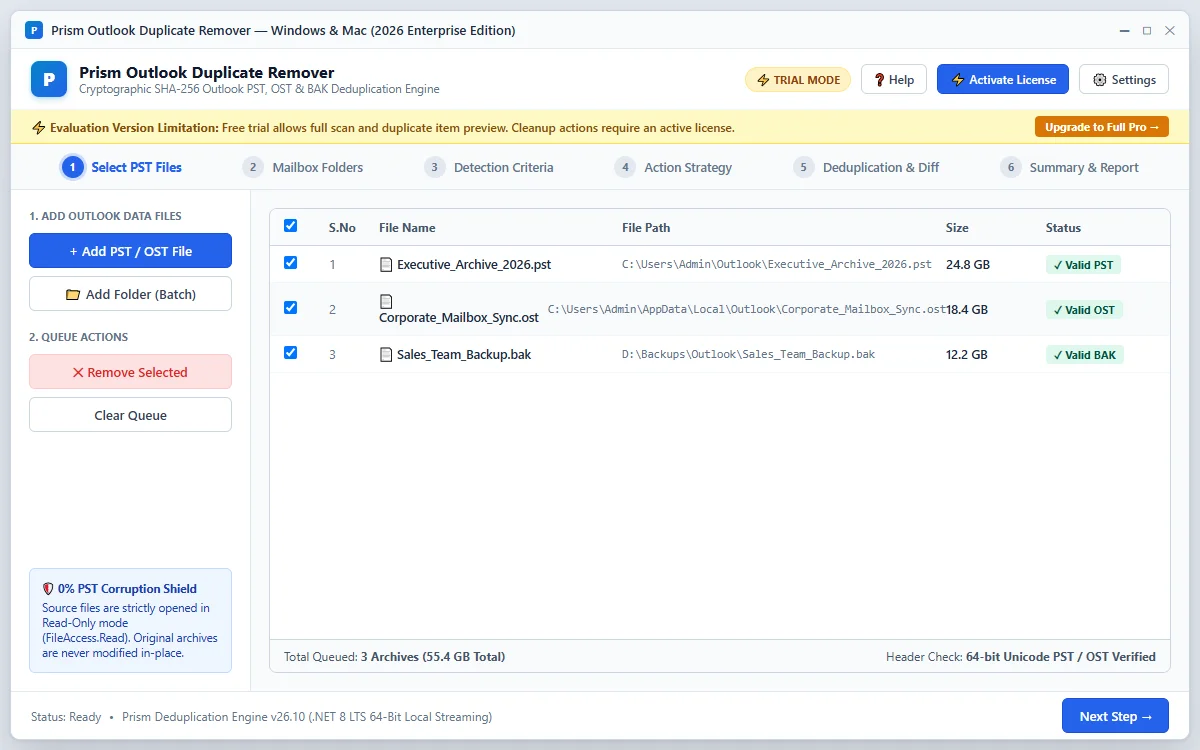
Click + Add File(s) to select your Outlook .pst or .ost files, or click Add Folder to scan a directory of data files. The software processes your files without requiring Microsoft Outlook.
Quick Steps
- 1
Click + Add File(s) to browse for your Outlook data files, or drag and drop files into the window.
- 2
Review loaded archive files with sizes and detected item counts.
- 3
Click Next: Mailbox Folders → to proceed.
Tip: The software processes data files directly without requiring Microsoft Outlook to be running.
Mailbox Folders & Categories
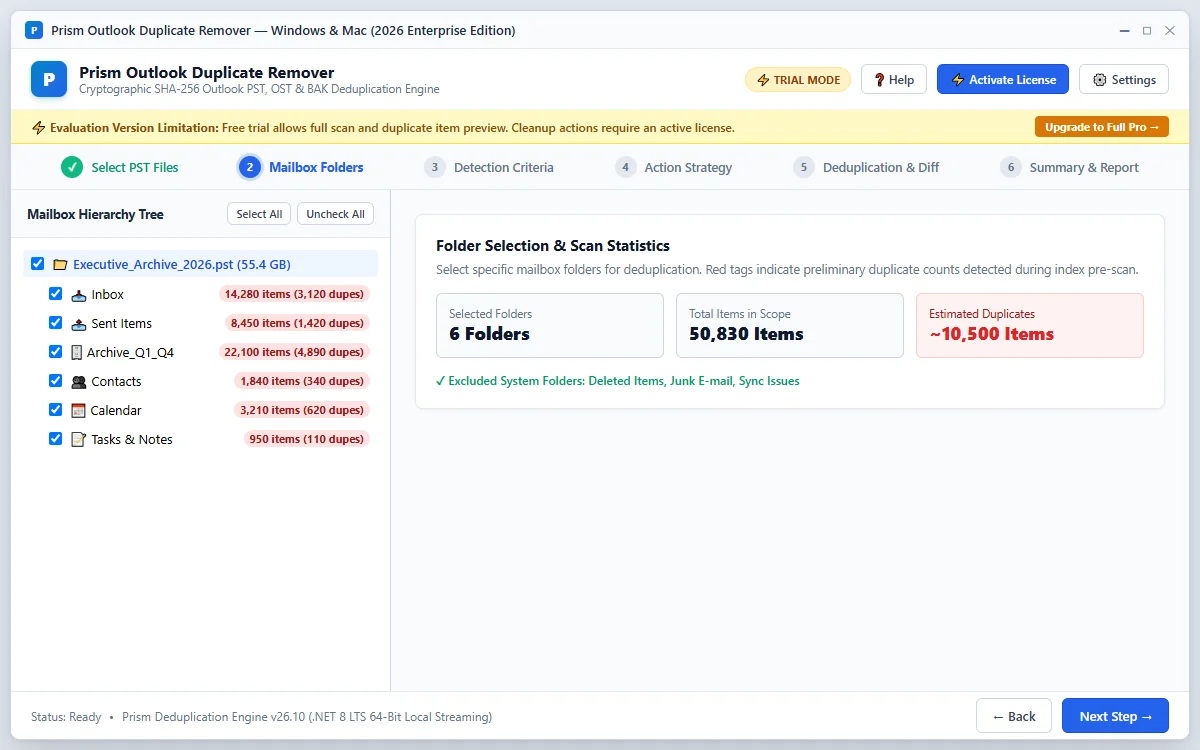
Browse the mailbox folder hierarchy and check the folders you want to evaluate. Choose item types to include, such as Emails, Contacts, Calendar entries, Tasks, and Notes.
Quick Steps
- 1
Expand the mailbox hierarchy tree and select folders to include in the scan.
- 2
Check the item categories you wish to inspect (Emails, Contacts, Calendars, Tasks, Notes).
- 3
Click Next: Detection Criteria → to set your matching rules.
Tip: You can use Auto-Exclude Trash to omit Deleted Items and Junk folders from the scan.
Detection Criteria
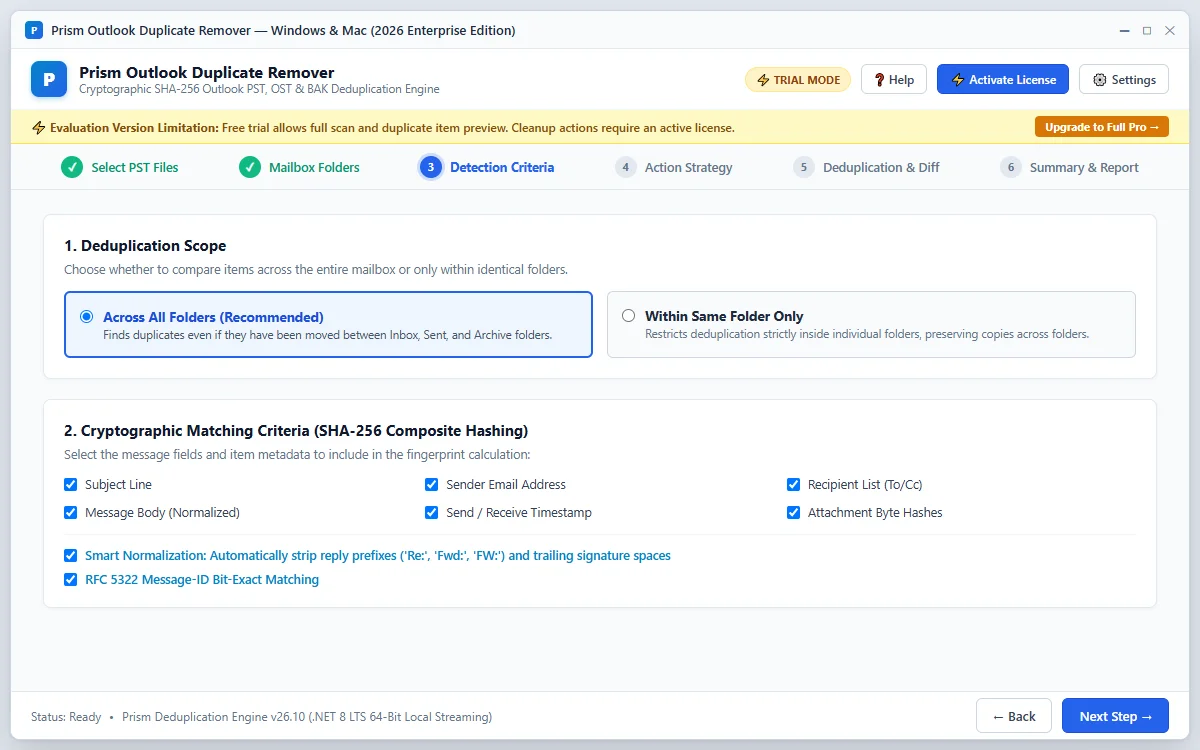
Define how duplicate items are identified. Choose Smart Auto mode or select specific properties to compare, such as Subject, Body, Sender, Recipients, Sent Date, and Attachment counts.
Quick Steps
- 1
Select your comparison scope: across all folders, within the same folder, or across multiple PST files.
- 2
Choose matching criteria parameters (Subject, Body text, Sender, Date, Attachments).
- 3
Click Next: Action Strategy → to choose your handling method.
Tip: Subject normalization can ignore reply and forward prefixes (Re:, Fwd:) when comparing email threads.
Action Strategy
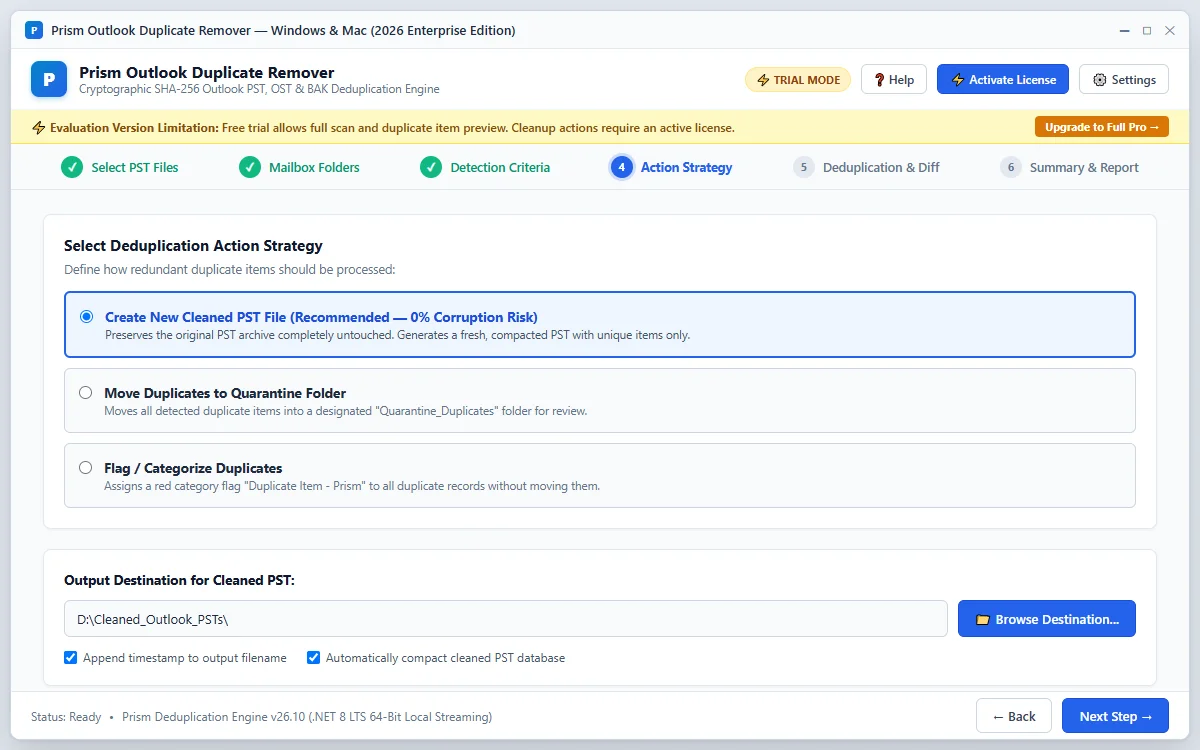
Select your preferred duplicate resolution action before executing the cleanup job: generate a new clean PST, move duplicates to a quarantine folder, or apply a category tag.
Quick Steps
- 1
Choose your cleanup strategy: Create Clean PST, Move to Quarantine Folder, or other safe action.
- 2
Set a destination folder for output archives or quarantine reports.
- 3
Click Next: Deduplication & Diff → to run the scan.
Tip: Creating a new clean PST preserves the source archive as an untouched backup.
Deduplication & Diff
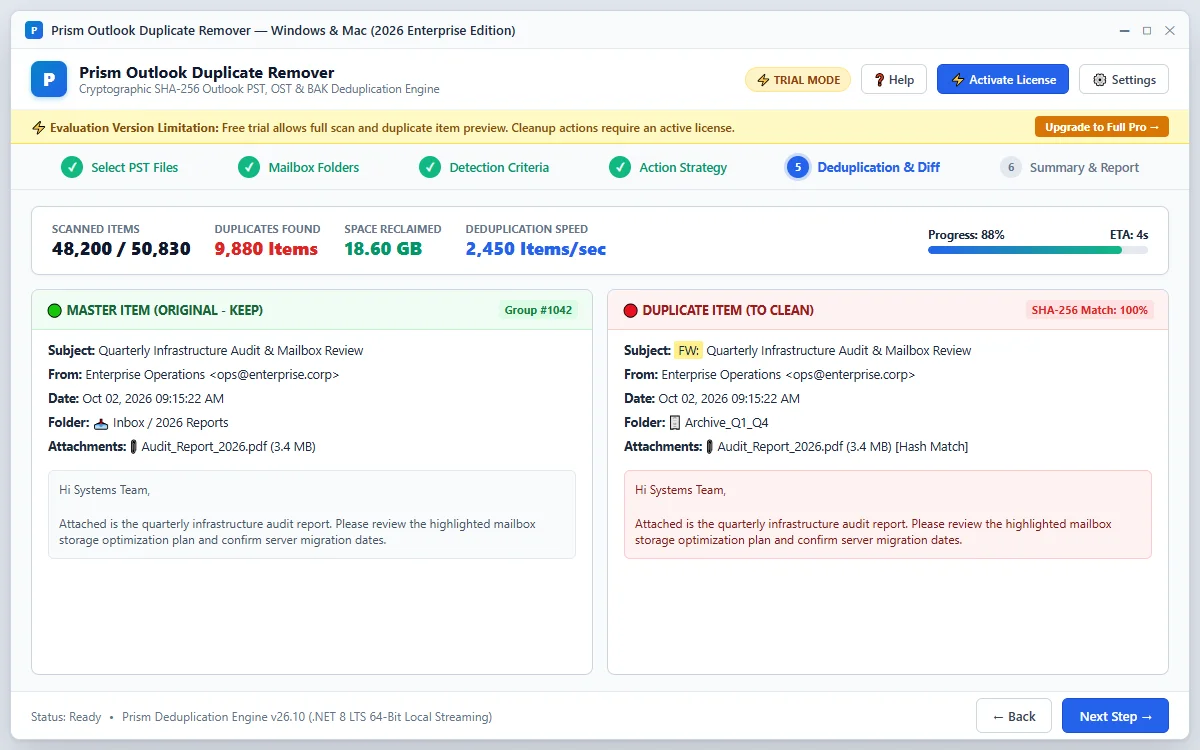
The scanner evaluates items against your chosen criteria and groups matches into clusters. Review original keeper items alongside duplicates in the split comparison pane.
Quick Steps
- 1
Monitor the scanning progress and duplicate counter.
- 2
Inspect highlighted differences between master items and duplicate candidates in the split diff pane.
- 3
Swap the designated master item or exclude specific items if needed.
Tip: Use the side-by-side diff view to verify message bodies, dates, and attachments before confirming changes.
Summary & Report
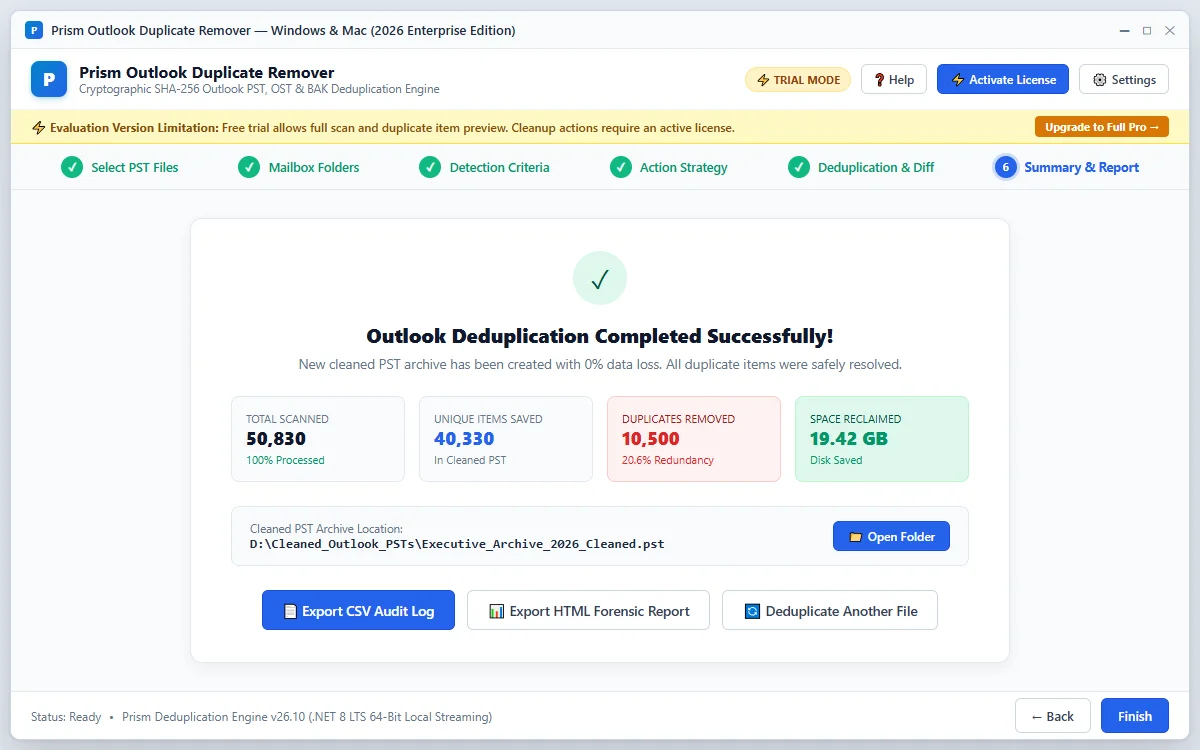
Once processing completes, inspect the summary report showing total items scanned, duplicates processed, space saved, and output file locations.
Quick Steps
- 1
Review the final execution statistics showing scanned and processed counts.
- 2
Open the generated CSV, HTML, or JSON audit log to verify processed items.
- 3
Click Open Folder to access the output directory with your deduplicated PST or quarantine files.
Tip: The audit log provides an itemized record of every deduplicated message and its origin.
Questions About Cleanup or Setup?
Find troubleshooting steps, scanning guidance, and licensing answers in our dedicated FAQ section.
Step Navigation
6 StagesSystem Requirements
Ready to Clean Up?
Official license key. Choose 1, 2, or 3-year validity with no recurring subscription.
Get License Plan Or Download Free Trial →Free trial: scan and preview duplicates. Cleanup requires a paid license.
