
PST Recovery Tool — User Guide
A simple, step-by-step visual walkthrough to help you convert, backup, or restore your emails in a few steps.
Prefer a 2-Minute Video Walkthrough?
Watch real desktop execution from file selection to conversion complete.
Before You Begin — Quick Checklist
Key requirements and preparation steps before you start
Standalone Operation
Runs independently. Microsoft Outlook, Exchange, or third-party email clients are not required.
Source Files
The tool reads your source files to convert them. Keep a backup of important data before you start.
Local Processing
Conversion runs on your computer. Only cloud destinations you choose send data to those services.
Free Evaluation
The free trial is limited to 50 items per folder. A license removes the limit.
Complete 6-Step Execution Guide
Select Damaged PST File
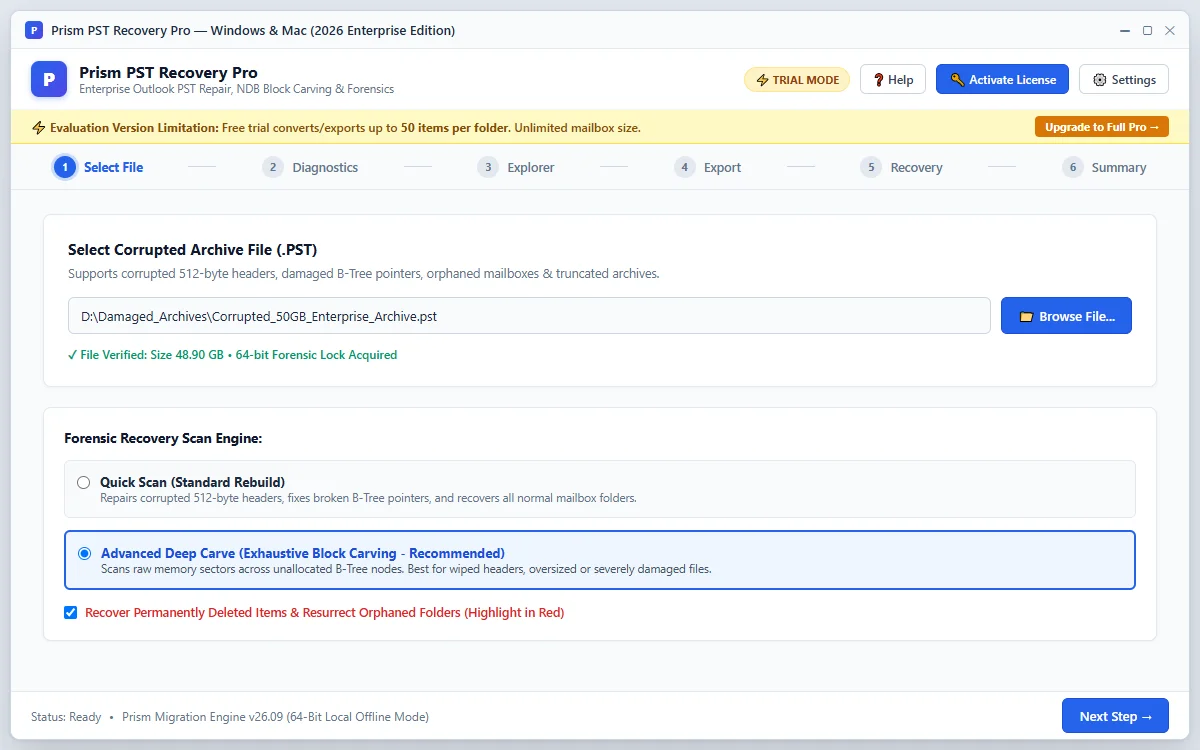
Click + Select File to load your damaged, corrupted, or orphaned PST data file. No Outlook installation or Exchange server is needed.
Quick Steps
- 1
Click + Select File to locate your damaged PST file.
- 2
The tool validates the file and checks the extent of corruption.
- 3
Click Next: Scan & Recover → to begin.
Tip: The software opens orphaned files even if your email account has been deleted.
Deep Scan & File Repair
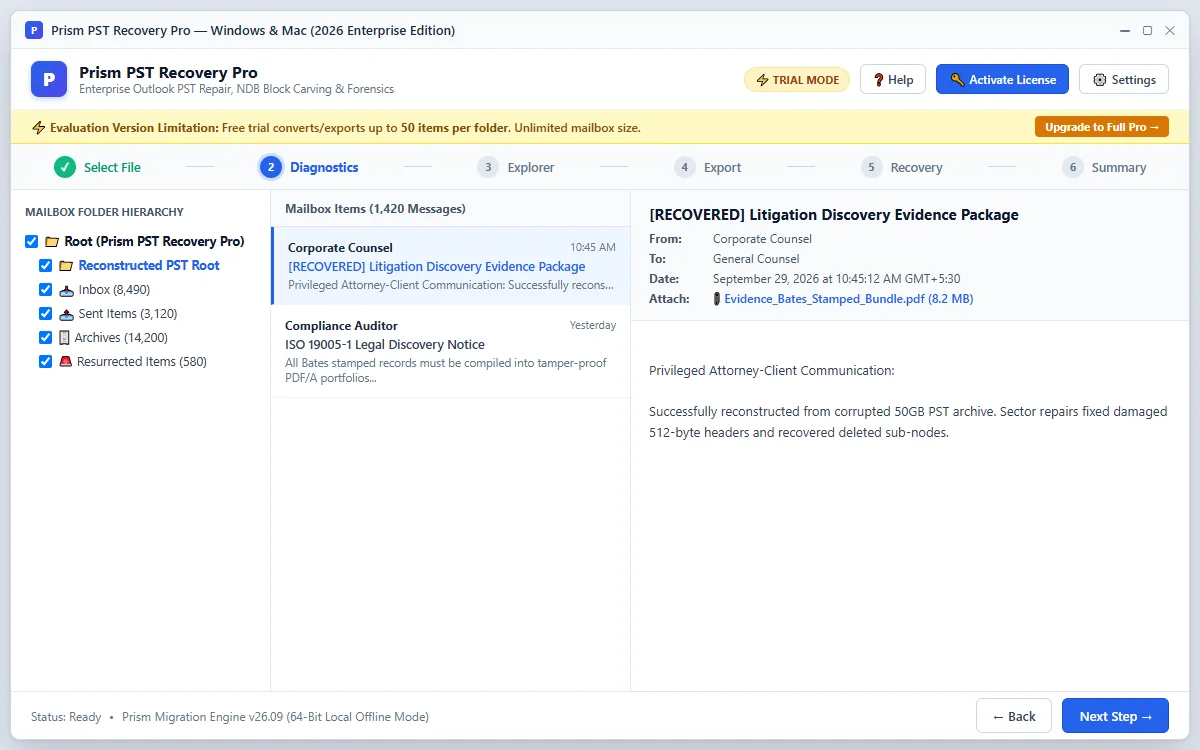
The recovery engine scans the damaged file sectors, reconstructs broken folder hierarchies, and restores corrupted emails, attachments, and contacts.
Quick Steps
- 1
The tool repairs corrupt headers and reads accessible data blocks.
- 2
Deleted emails and missing folders are automatically reconstructed.
- 3
Watch the real-time recovery progress bar.
Tip: Even severely damaged files that fail Microsoft ScanPST can be recovered.
Preview Recovered Mailbox
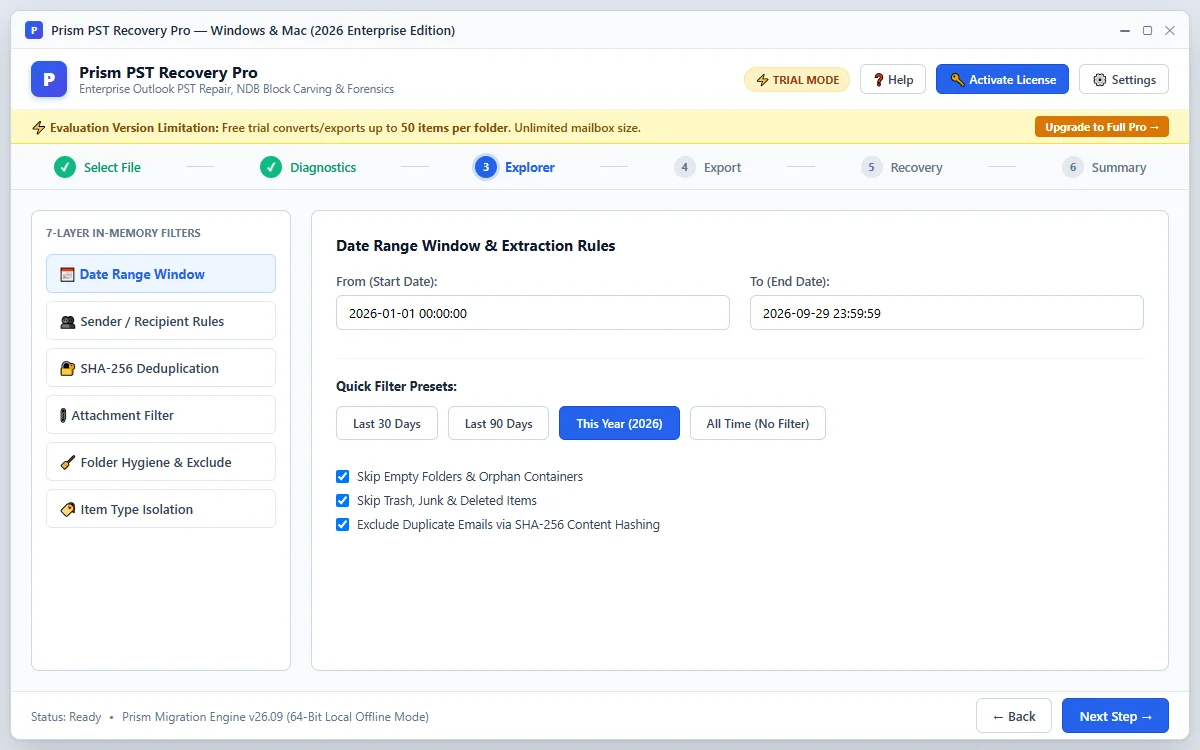
Browse your fully restored folder tree. Click any folder to see recovered messages, and preview email text, formatting, and attachments before saving.
Quick Steps
- 1
Expand recovered folders (Inbox, Sent, Contacts, Calendar) on the left.
- 2
Click any message to preview its text and attachments.
- 3
Select the folders you wish to restore.
Tip: Preview works in the trial version so you can check your data before buying.
Choose Output Format
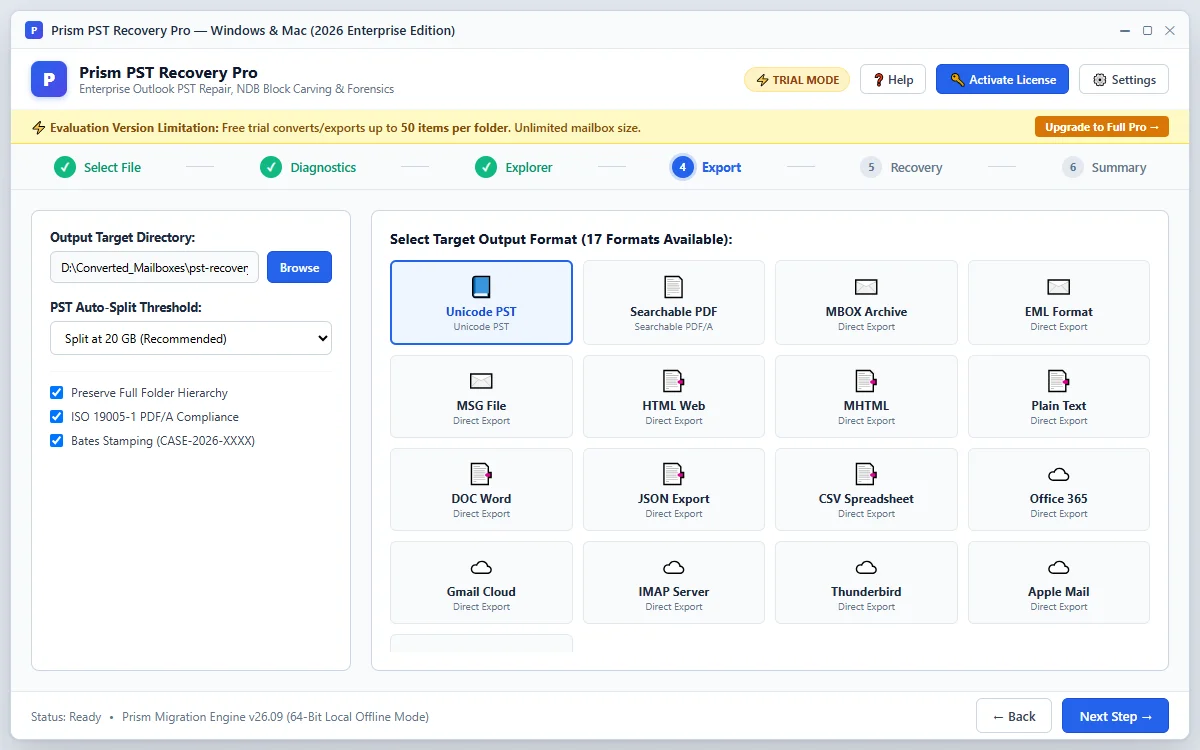
Select your preferred output format. You can export to a brand new, healthy Outlook PST file, or convert to PDF, EML, MBOX, or cloud services.
Quick Steps
- 1
Select Outlook PST (creates a pristine, error-free PST) or another format.
- 2
Choose a destination folder on your computer with sufficient free space.
- 3
Optionally split large output files to keep them under 20GB.
Tip: Creating a new PST ensures Microsoft Outlook opens it smoothly without errors.
Save Recovered Data
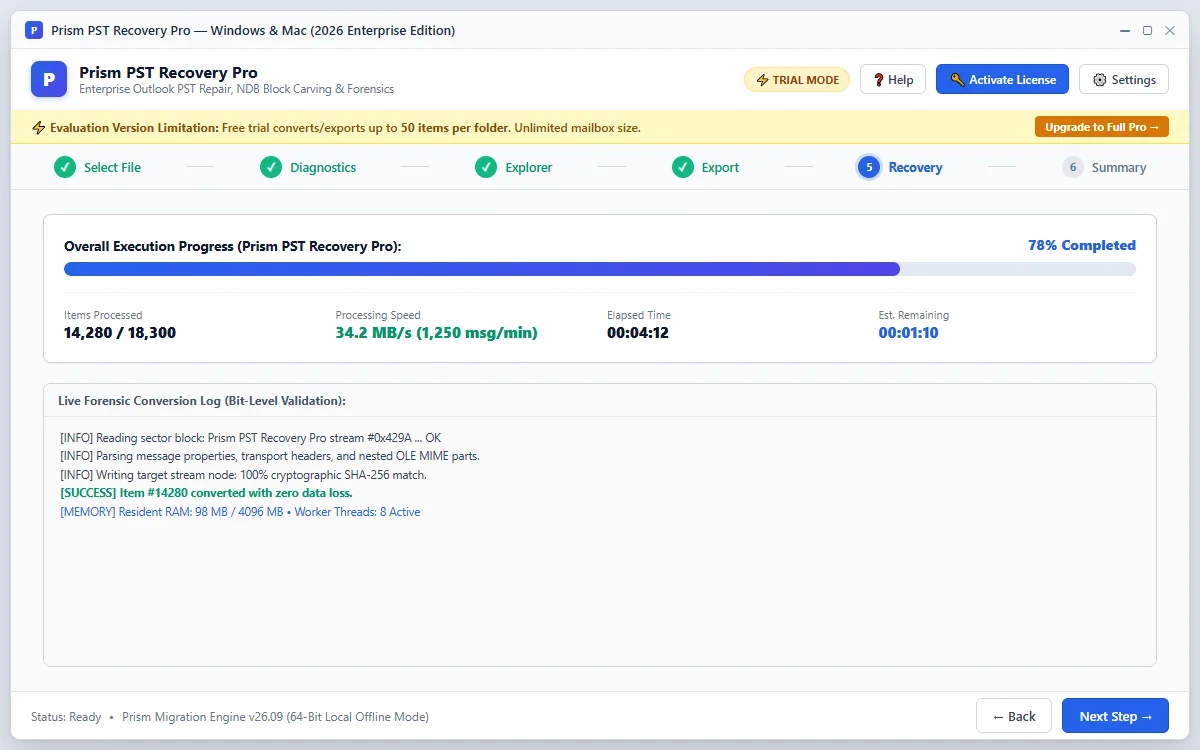
Click Save to write your recovered emails and attachments into pristine new files on your computer. A progress bar shows real-time extraction.
Quick Steps
- 1
Click Save Recovered Data to begin writing files.
- 2
Monitor items restored, current folder, and transfer speed.
- 3
Check the summary when the run finishes.
Tip: Your original damaged file is never altered or overwritten.
Import into Outlook
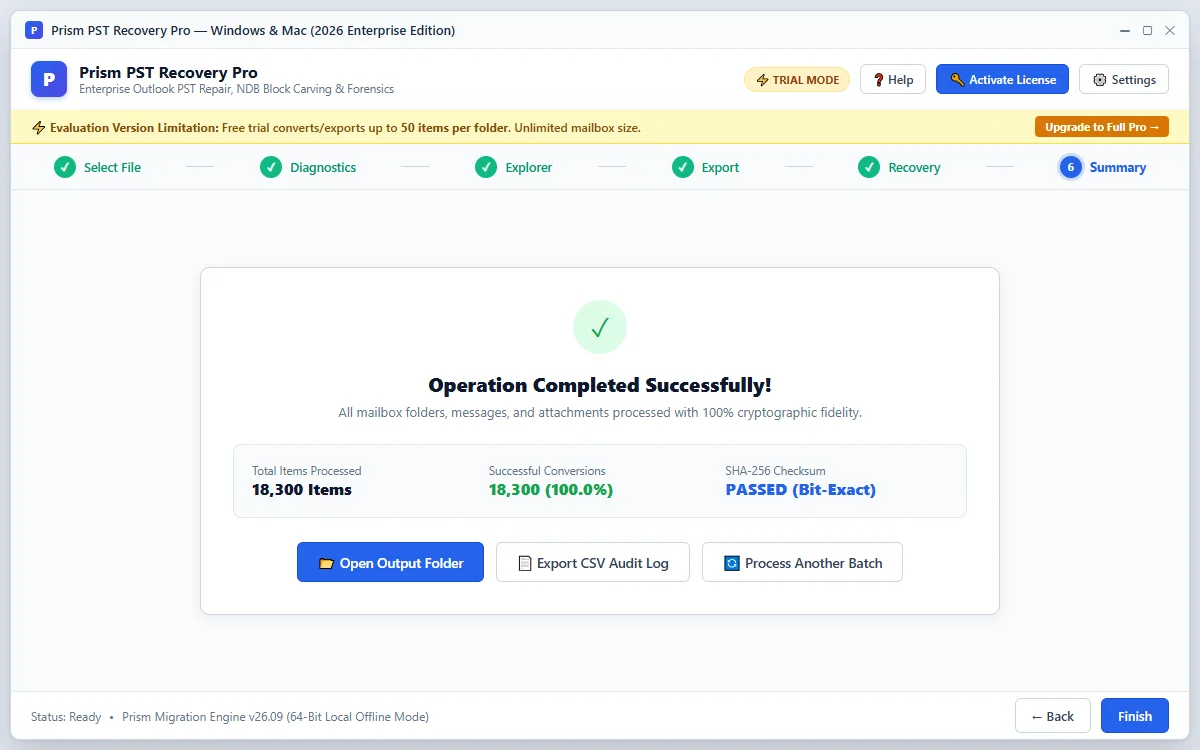
Once finished, click Open Folder to access your new PST file. You can open it directly in Microsoft Outlook via File > Open & Export > Open Outlook Data File.
Quick Steps
- 1
Click Open Folder to view your recovered PST file.
- 2
Open Microsoft Outlook and select File > Open & Export > Open Outlook Data File.
- 3
All your emails, folders, contacts, and calendars are restored and accessible.
Tip: You can now use your Outlook mailbox normally with all historical emails restored.
Questions About Conversion or Setup?
Find detailed troubleshooting, format limits, and licensing answers in our dedicated FAQ section.
Step Navigation
6 StagesSystem Requirements
Ready to Migrate?
Official license key. Choose 1, 2, or 3-year validity with no recurring subscription.
Get License Plan Or Download Free Trial →The free trial is limited to 50 items per folder. A license removes the limit.
