
PST to PDF Converter — User Guide
A simple, step-by-step visual walkthrough to help you convert, backup, or restore your emails in a few steps.
Prefer a 2-Minute Video Walkthrough?
Watch real desktop execution from file selection to conversion complete.
Before You Begin — Quick Checklist
Key requirements and preparation steps before you start
Standalone Operation
Runs independently. Microsoft Outlook, Exchange, or third-party email clients are not required.
Source Files
The tool reads your source files to convert them. Keep a backup of important data before you start.
Local Processing
Conversion runs on your computer. Only cloud destinations you choose send data to those services.
Free Evaluation
The free trial is limited to 50 items per folder. A license removes the limit.
Complete 6-Step Execution Guide
Add Outlook PST Files or Folders
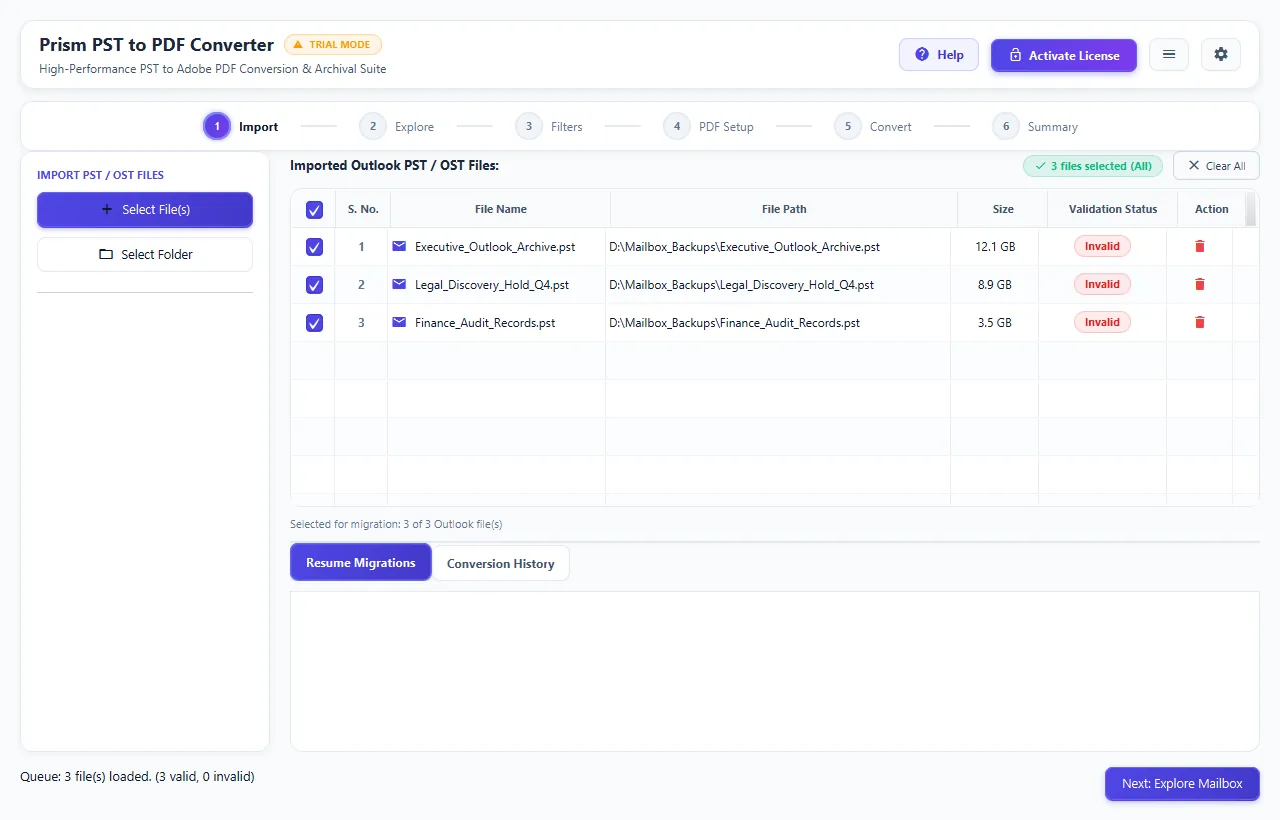
Click + Add File(s) to import individual PST archives or + Add Folder to queue multiple files simultaneously. The engine automatically analyzes PST B-Tree signatures and displays format, size, and message volume.
Quick Steps
- 1
Click + Add File(s) to browse for your Outlook PST file, or drag and drop it into the window.
- 2
Review archive metadata (ANSI/Unicode, total item count, and file size).
- 3
Click Next: Explore Mailbox → to load the folder hierarchy.
Tip: Supports all Outlook PST editions from 97 through 2024 and Microsoft 365 archives up to 100 GB without Outlook installed.
Explore Mailbox Hierarchy & Preview Messages
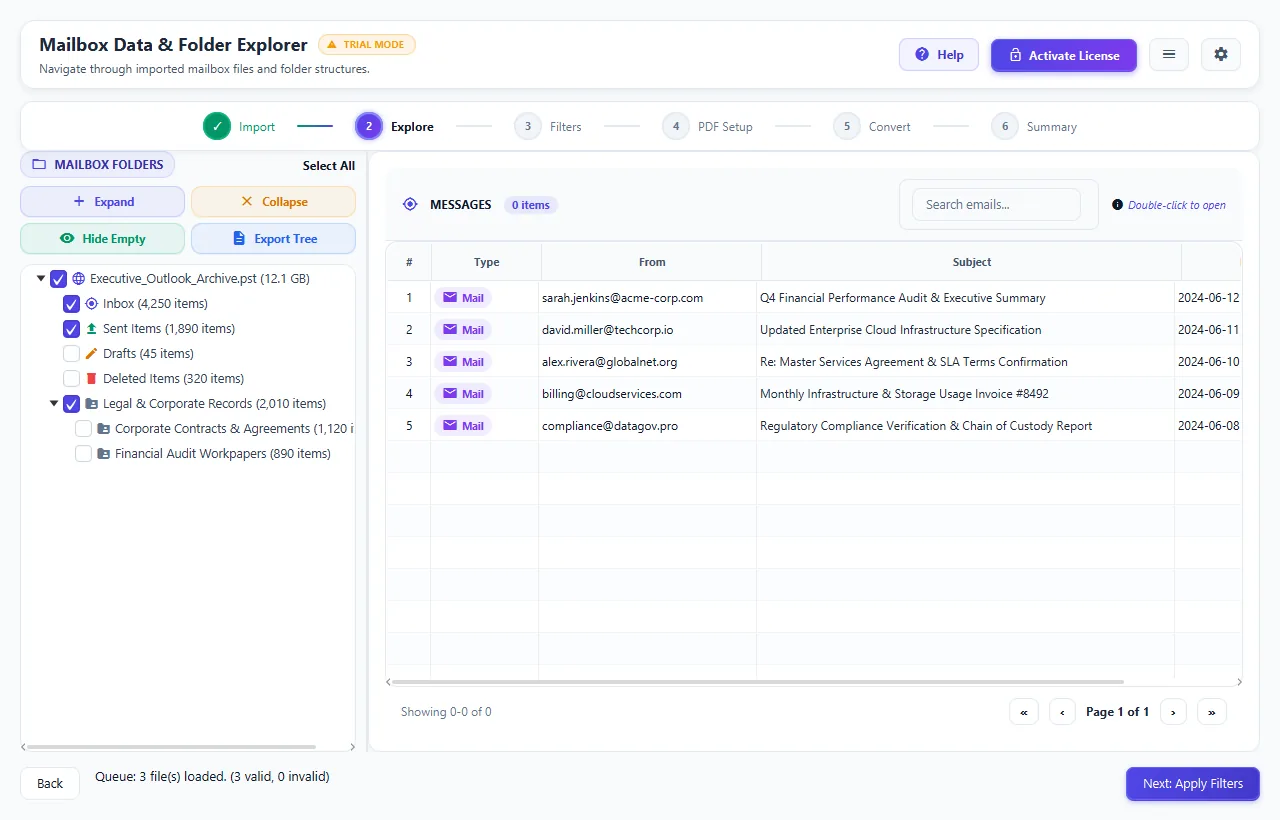
Navigate your mailbox folder tree (Inbox, Sent Items, Litigation Hold, Contracts) with live read/unread counters. Click any email to inspect message bodies, transport headers, attachments, and raw hex streams.
Quick Steps
- 1
Browse the folder hierarchy on the left panel and check the boxes for folders you want to convert.
- 2
Click any email message in the grid to view its rendered HTML, plain text, and header metadata.
- 3
Verify attachment names and sizes directly within the preview pane before converting.
Tip: Use the top search bar to filter messages instantly by sender, recipient, or subject keywords.
Configure Legal & Forensic Data Filters
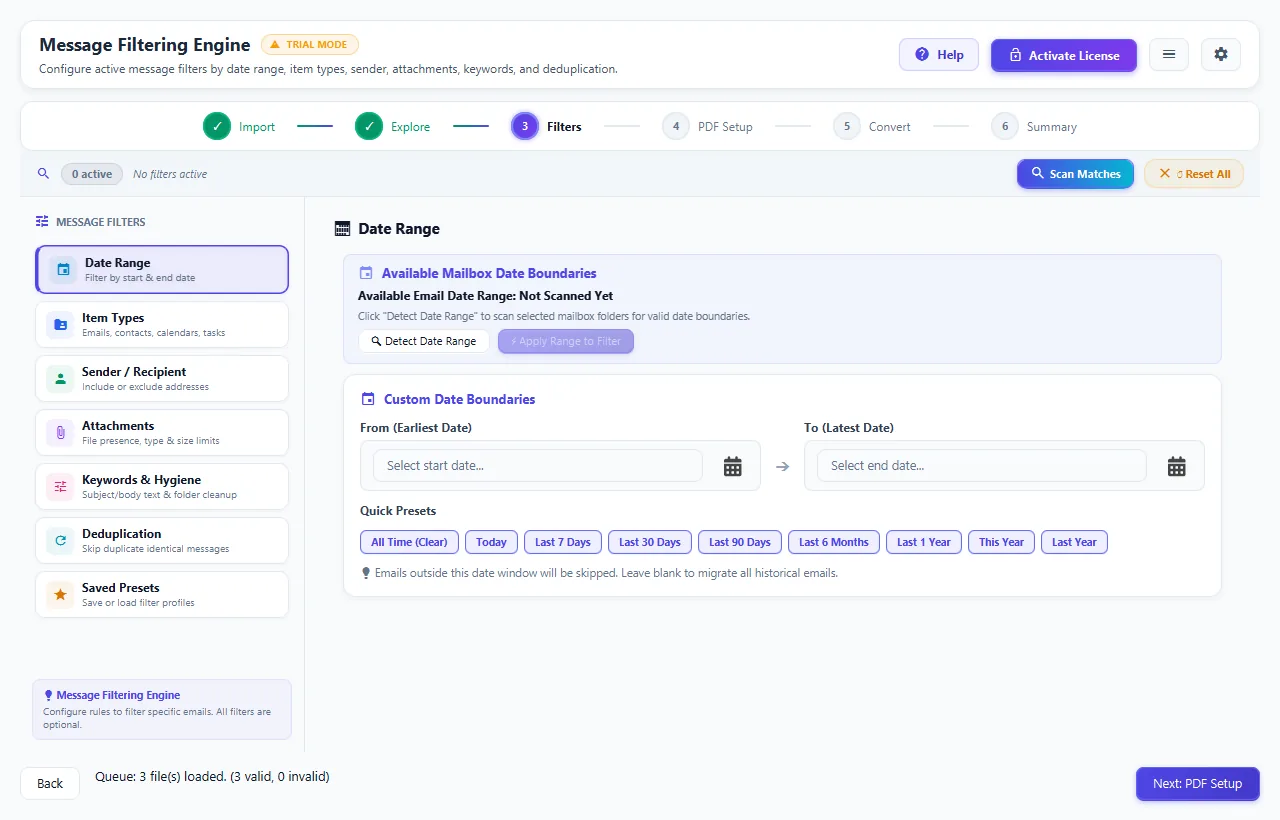
Customize conversion scope using 6 granular hygiene tabs: filter by UTC Date Range, exclude Trash and Deleted Items, whitelist or blacklist custodians, execute keyword queries, and eliminate duplicate emails with SHA-256 content hashing.
Quick Steps
- 1
Set an optional Date Range filter to target specific fiscal quarters or litigation hold periods.
- 2
Enable Skip Duplicates to remove redundant email copies automatically across shared threads.
- 3
Exclude Deleted Items or Junk folders to ensure clean, audit-ready document output.
Tip: Filters are optional — click Next without changes to convert all loaded mailbox messages.
PDF Customization, 5 Layout Engines & Bates Stamping
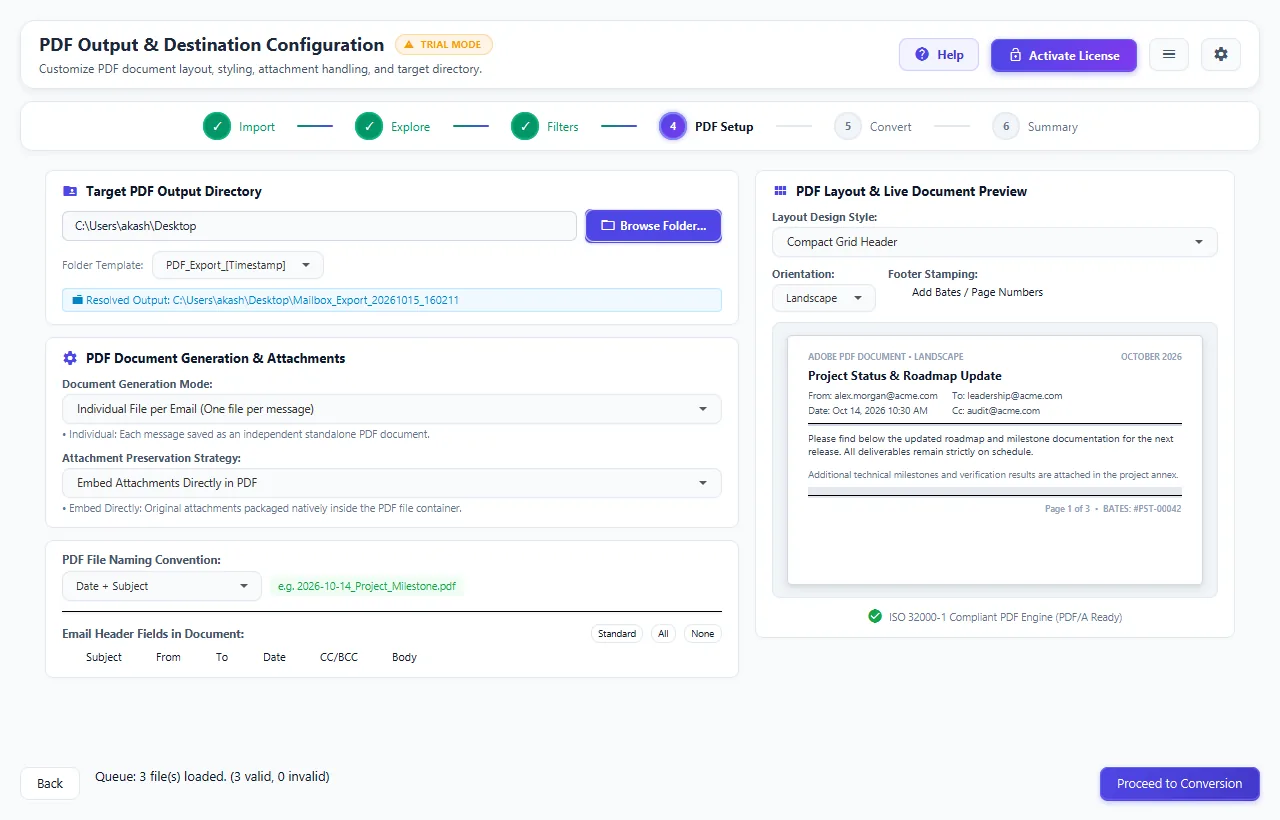
Choose from 5 dedicated PDF Layout Styles (Standard Card, Compact Grid, Classic Archive, Minimalist Clean Text, Detailed Metadata). Toggle email header fields, enable automated Bates and page numbering (Page X of Y Bates #PST-08418), configure portrait/landscape orientation, and inspect the real-time virtual sheet canvas.
Quick Steps
- 1
Choose your preferred PDF Layout Design Style and watch the live preview canvas update in real time.
- 2
Toggle email header fields (Subject, From, To, Date, CC/BCC, Body) using interactive chips.
- 3
Select your Attachment Preservation Mode: embed directly inside the PDF, extract to a companion folder, or discard.
- 4
Check Add Bates / Page Numbers to inject legal discovery footers across every generated page.
- 5
Choose Individual PDF per Email or Single Combined PDF per Folder.
Tip: The live interactive preview sheet lets you verify exact formatting and pagination before running the export.
Multi-Threaded Conversion & Live Telemetry
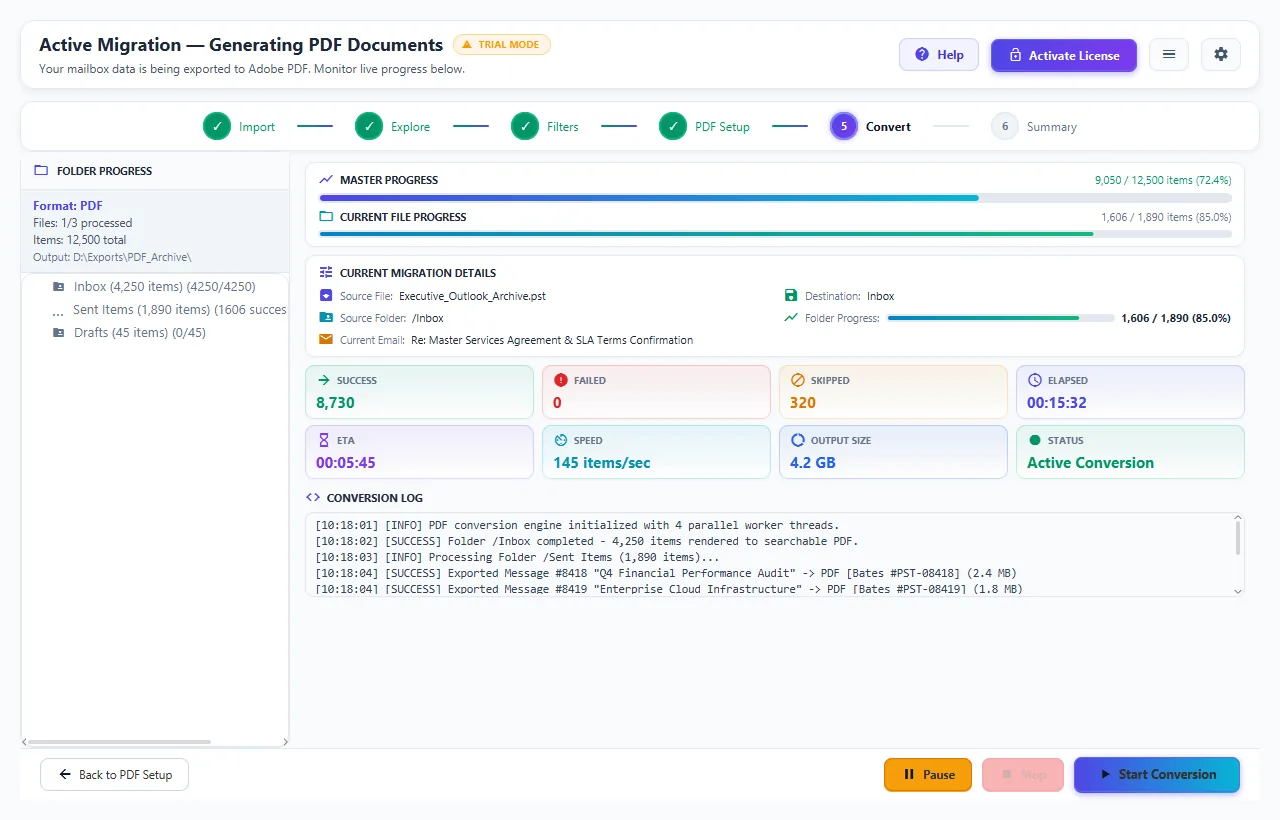
Watch real-time conversion progress with dynamic speedometers, folder completion meters, and elapsed/ETA counters. The asynchronous multi-worker engine leverages all CPU cores for maximum throughput while logging transactions to an embedded SQLite database.
Quick Steps
- 1
Click Start Conversion to launch the multi-threaded rendering engine.
- 2
Monitor items processed, active folder, current throughput speed (up to 40 GB/hr), and ETA.
- 3
Pause and resume processing whenever needed without losing state.
Tip: The integrated SQLite transaction journal guarantees that interrupted jobs resume seamlessly without duplicating existing files.
Post-Conversion Audit Report & Output Verification
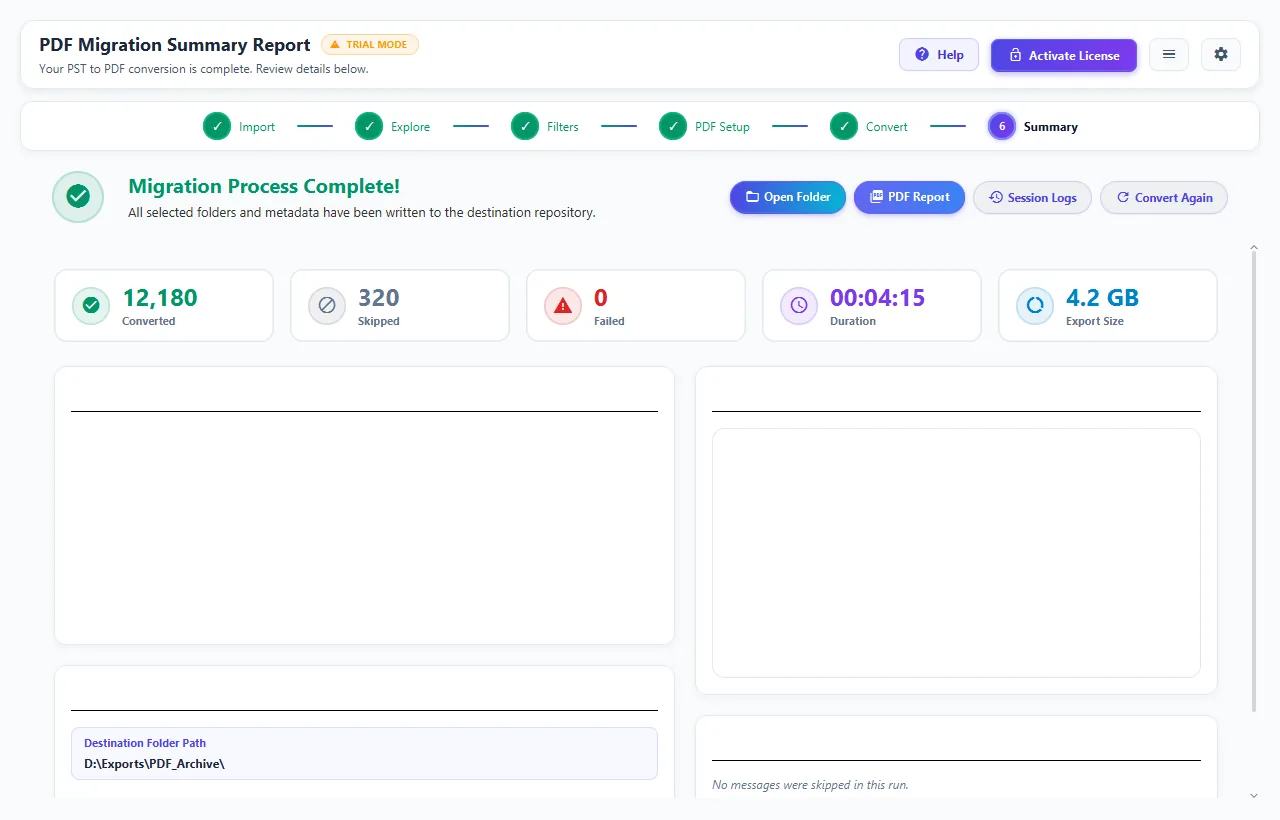
Upon completion, inspect the execution audit summary displaying total converted items, excluded duplicates, failed items (0), and elapsed time. Click Open Output Folder to access your organized, searchable Adobe PDF documents.
Quick Steps
- 1
Review the final audit statistics card verifying total item counts and successful conversions.
- 2
Click Open Output Folder to view and inspect your generated PDF archives in Adobe Acrobat Reader.
- 3
Open any generated PDF to verify embedded attachments, header styling, and Bates footers.
Tip: Generated PDFs are 100% spec-compliant and open cleanly in all standard PDF viewers and litigation review platforms.
Questions About Conversion or Setup?
Find detailed troubleshooting, format limits, and licensing answers in our dedicated FAQ section.
Step Navigation
6 StagesSystem Requirements
See the Tech Specs page.
Ready to Migrate?
Official license key. Choose 1, 2, or 3-year validity with no recurring subscription.
Get License Plan Or Download Free Trial →The free trial is limited to 50 items per folder. A license removes the limit.
